Gourav
 If you’ve been following the latest AI trends in 2026, you’ve almost certainly heard of “Nano Banana.” It has taken the internet by storm, with creators sharing thousands of images generated in milliseconds. But what exactly is it?
The Authority: Explaining the Tech
While the name is playful, the technology is revolutionary. “Nano Banana” is the community nickname for Google’s Gemini 2.5 Flash Image model. It earned this nickname because of its signature yellow launch icon and its split-second processing speed. Unlike older AI models that required heavy computing power, this model is designed to be lightweight, incredibly fast, and hyper-efficient.
The Value Proposition: Why Read This?
The best part? You don’t need a high-end gaming PC or a paid subscription to use it. Google has made this model accessible for free if you know where to look.
In this guide, I’ll take you inside the Google AI interface to show you:
- The Speed Test: Is it really faster than the competition?
- The Quality Check: Can a “Flash” model actually produce realistic details?
- The Walkthrough: How to generate your first “Nano Banana” image in under 30 seconds.
Whether you’re a content creator looking to streamline your workflow or simply curious about the latest breakthrough in generative AI, this step-by-step tutorial will get you up and running with one of 2026’s most talked-about technologies.
How to Access Google Nano Banana (Gemini 2.5 Flash) for Free?
Step 1: Accessing the Dashboard
Getting to the image generation interface is straightforward once you know where to look. Google periodically updates this dashboard, so follow these steps carefully to locate the correct tools.
1. Log In to Google AI Studio
Navigate to aistudio.google.com in your PC browser. Sign in with your Google account to reach the main dashboard.
2. Locate the “What’s New” Section
Once logged in, you’ll see the Home dashboard divided into quick-start cards. Scroll down to find the section labeled “What’s new.”
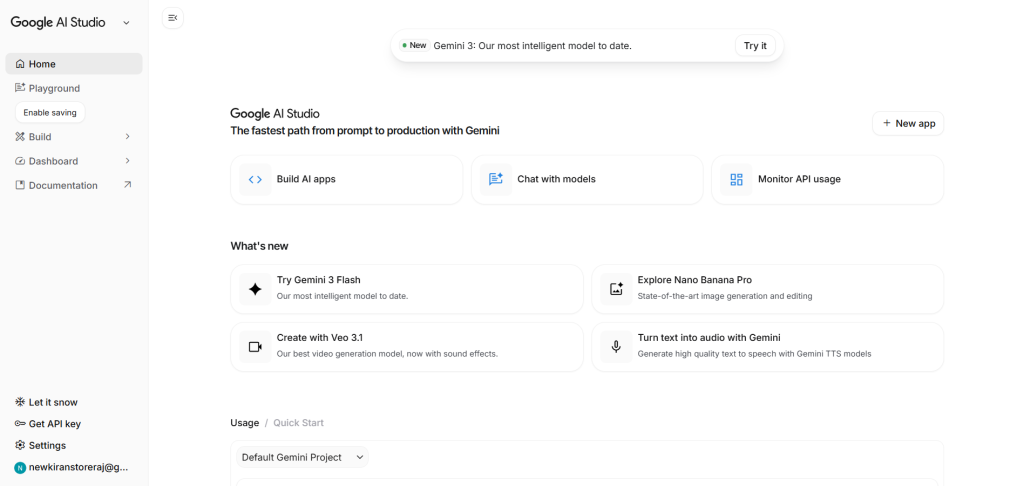
As shown in the screenshot below, this section highlights recently added features and models—including the Gemini 2.5 Flash Image model that the community has nicknamed “Nano Banana.”
3. Click “Explore Gemini 2.5 Flash Image Generation”
This is the most important step. Don’t just click “Chat with models.” Instead, look for the specific card labeled “Explore Gemini 2.5 Flash: State-of-the-art image generation and editing.”
Why this specific card? Clicking here takes you directly to the specialized image workspace with the Gemini 2.5 Flash settings pre-configured. This saves you from having to manually select the model and adjust parameters—everything is optimized for image generation right from the start.
Step 2: Understanding the Image Generation Interface
Once you click the explore button, you’ll enter the main Playground workspace. This is where you’ll actually create your images. As shown in the screenshot below, the interface is organized into three distinct sections designed to streamline your workflow.
1. The Canvas (Center)
The large center panel currently displays example use cases—such as fashion collages, product mockups, or architectural blueprints. Once you begin generating images, your results will appear in this space.
2. The Prompt Bar (Bottom)
Located at the bottom of the screen, you’ll find a text input field that says “Start typing a prompt…” This is where you’ll enter your image description. For example: “A futuristic cyberpunk city at sunset with neon signs.”
3. The Control Panel (Right Sidebar)
This sidebar houses the key configuration options that give you precise control over your output:
- Aspect Ratio: Adjust the dimensions of your image (Square, Widescreen, or Portrait)
- Resolution: Choose between standard or high-definition output quality
- Temperature: Controls the AI’s creativity level—lower values produce more predictable results, while higher values increase variation and experimentation
Understanding these three sections will help you navigate the interface efficiently and generate exactly the type of images you need.
Important: How to Use the Free Version
You might notice a message in the center of the interface indicating that a paid API key is required. Don’t be concerned—this appears because a premium model configuration is selected by default. You can easily switch to the free version by following these steps:
Switching to the Free Model
Locate the Run Settings: Look at the right sidebar and find the section labeled “Run Settings.”
Click the model name “Nano Banana Pro”.
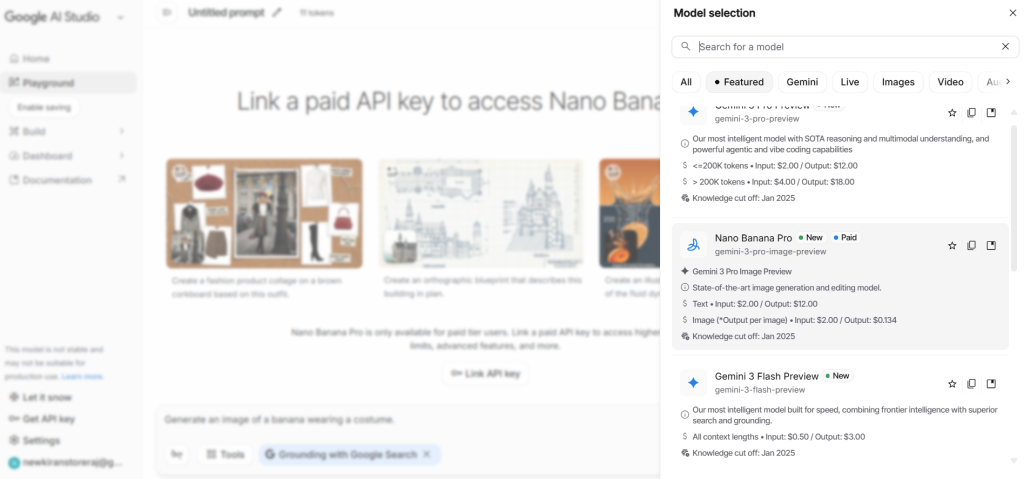
Select the Free Model: In the dropdown menu that appears, switch to “Gemini 2.5 Flash”—this is the free-tier model that powers the image generation capabilities without requiring payment.
Verify Access: Once selected, the payment warning will disappear, and you’ll be able to start generating images immediately at no cost.
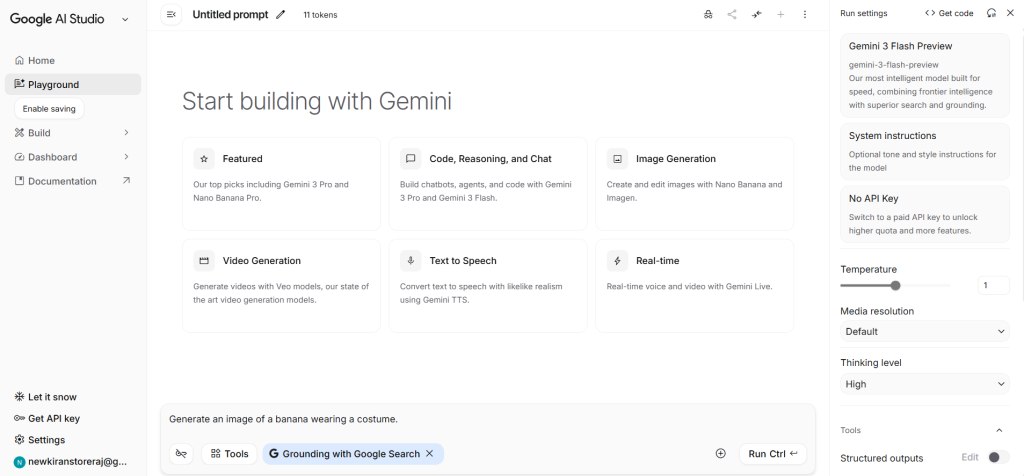
Note: Google offers this model free of charge through their AI Studio interface, though usage limits may apply. You can generate images without entering payment information or subscribing to a paid plan.
Step 3: Generating Your First Image
Now that the dashboard is configured and the free model is selected, it’s time to create your first AI-generated image.
1. Locate the Prompt Input Field
At the bottom of the screen, you’ll see a text input box with placeholder text (such as “Start typing a prompt…” or a sample suggestion). This is where you’ll enter your image description.
2. Enter Your Test Prompt
For this demonstration, we’ll use a detailed prompt that tests the model’s ability to handle complex lighting, textures, and natural elements.
Copy and paste this prompt into the text box:
A cinematic nature photograph of a majestic waterfall cascading down mossy rocks into a clear pool. The forest around it is full of vibrant autumn colors with red and orange leaves. Golden hour sunlight filters through the tree canopy, creating a misty atmosphere. 8k resolution, highly detailed.This prompt is intentionally detailed to evaluate how well the model handles realistic lighting effects, organic textures, and atmospheric conditions.
3. Verify Your Configuration Settings
Before generating the image, confirm your settings in the right sidebar:
- Model: Ensure “Gemini 2.5 Flash” is selected (this is the free version)
- Temperature: Set to 1.0 for balanced creativity and coherence
- Safety Settings: Leave at default unless you have specific requirements
Understanding Temperature: A setting of 1.0 allows the AI to interpret your prompt creatively while maintaining realistic output. Lower values (0.3-0.7) produce more conservative, predictable results, while higher values (1.2-1.5) increase variation but may reduce consistency.
4. Generate Your Image
Click the “Run” button located near the prompt box (or press Ctrl + Enter on your keyboard).
Expected generation time: Because you’re using the Flash model optimized for speed, your image should appear within 2-5 seconds—significantly faster than traditional image generation models that can take 30 seconds or longer.
Step 4: Analyzing the Result
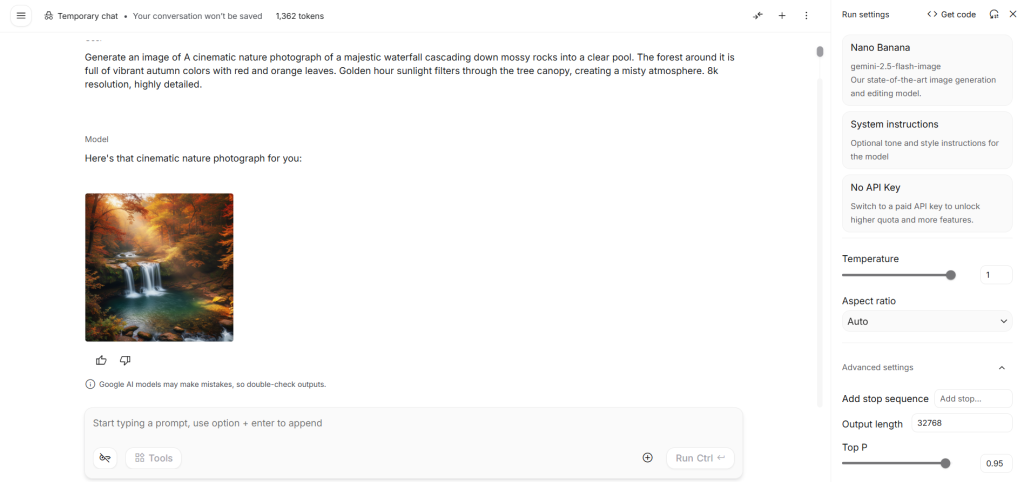
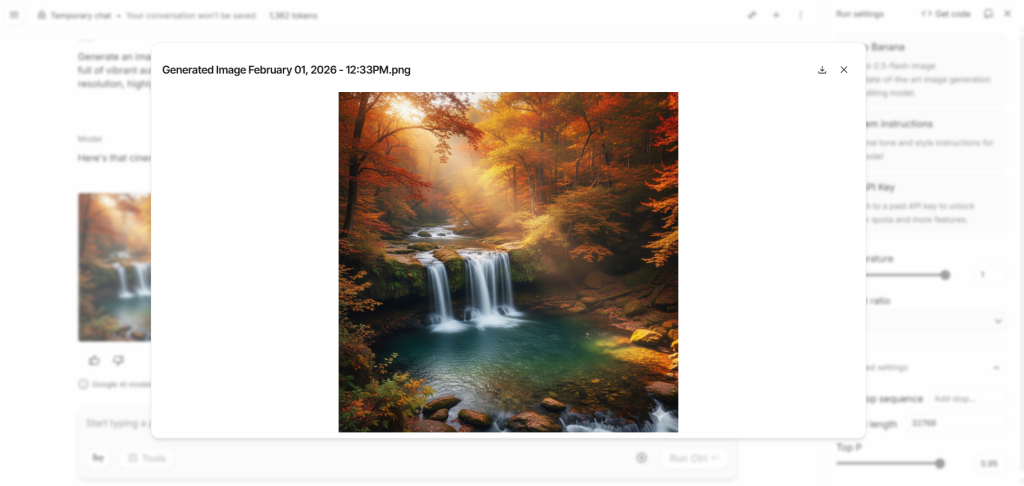
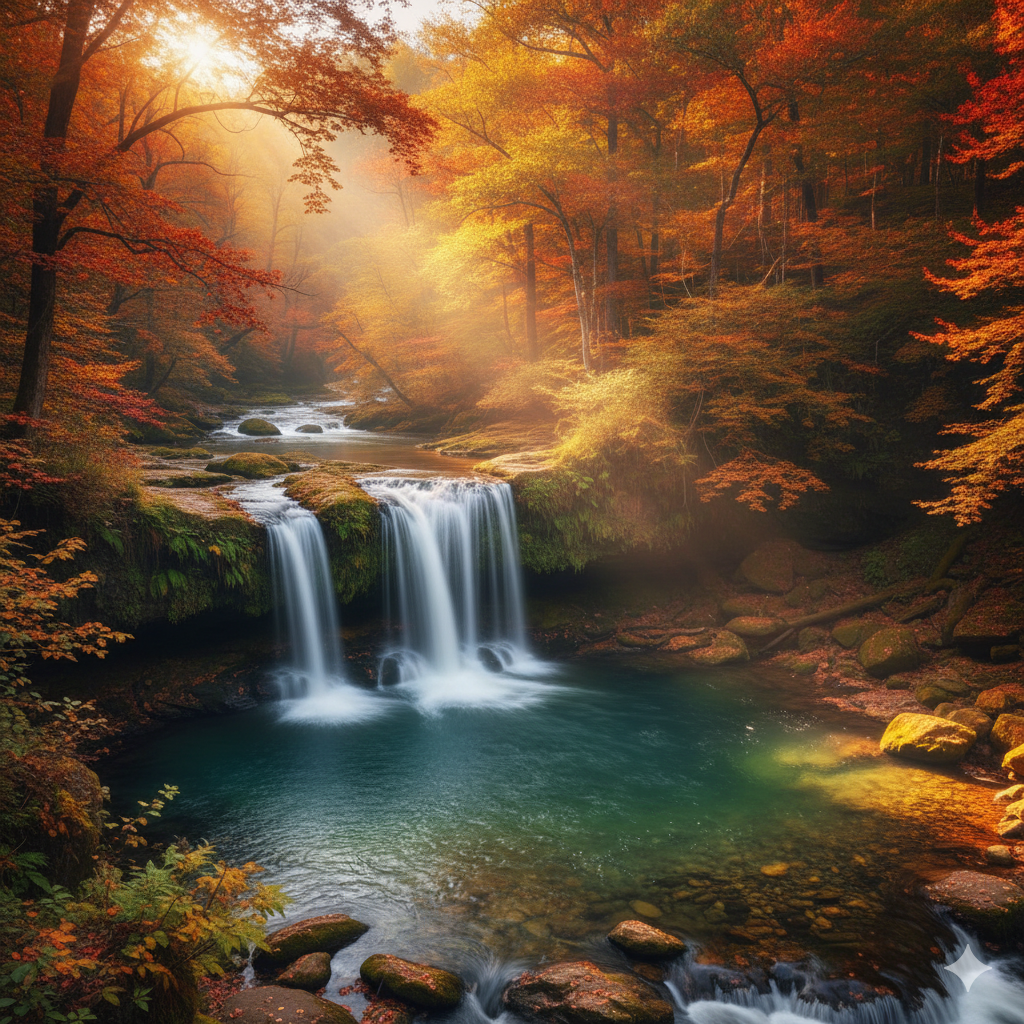
Speed Performance
In my test, the image generated in under 3 seconds. This demonstrates the core advantage of the Gemini 2.5 Flash model—its exceptional processing speed. For comparison, competing platforms like Midjourney typically require 30-60 seconds per image, making this model approximately 10-20 times faster for similar quality outputs.
Why this matters: If you’re generating multiple images for a project, content creation workflow, or client presentation, this speed difference translates to significant time savings. What might take 10 minutes on other platforms can be accomplished in under a minute here.
Quality Assessment
Despite being optimized for speed, the output quality remains notably high. Key observations from the generated waterfall image:
- Texture detail: The mossy rocks and water spray show clear definition
- Lighting accuracy: The golden hour sunlight filtering through trees created realistic atmospheric effects
- Color rendering: The autumn foliage displays natural color gradients and depth
- Overall composition: The image maintains professional-grade visual coherence
The bottom line: For use cases like social media content, website graphics, storyboarding, concept visualization, or marketing materials, this free Flash model delivers results comparable to paid premium services. You don’t need expensive subscriptions or high-end computing hardware to produce publication-ready images.
When you might need a premium model: Extremely fine detail work, specific brand consistency requirements, or commercial projects requiring absolute photorealism may still benefit from slower, more computationally intensive models.
Conclusion: Is Gemini 2.5 Flash the Right Tool for You?
After extensive testing of Google’s Gemini 2.5 Flash image generation model, one thing is clear: speed and accessibility have redefined what’s possible with free AI tools in 2026.
While competing platforms like Midjourney V6 or Adobe Firefly may offer more artistic style options and fine-tuned aesthetic controls, Google has established a commanding lead in generation efficiency and barrier-free access. For content creators, educators, marketers, and developers who need high-quality visual assets quickly, this represents the most capable free solution currently available.
Performance Summary
Speed: 10/10
Generates publication-ready images in 2-5 seconds—unmatched by any competitor in this category.
Image Quality: 8.5/10
Excels at landscapes, products, architecture, and technical visualization. Photorealistic rendering of complex human faces occasionally requires prompt refinement.
Value: 10/10
Completely free through Google AI Studio with no usage caps, subscription requirements, or credit systems.
Accessibility: 9/10
Requires knowledge of where to access the tool within AI Studio, but no technical expertise or hardware requirements once located.
Strengths and Limitations
What It Does Exceptionally Well?
The model generates images in under 5 seconds consistently, making it ideal for rapid prototyping and high-volume content creation. It requires no payment information or subscription, eliminating financial barriers entirely. All generation happens within your secure Google workspace environment, ensuring privacy and data control. The tool handles detailed prompts for nature, technology, and architectural subjects with exceptional fidelity and works seamlessly on desktop browsers without requiring additional software downloads.
Current Limitations to Consider
Interface access isn’t immediately obvious for first-time users navigating Google AI Studio. The default output style favors photorealism over artistic or illustrative aesthetics, which may not suit all creative projects. Best performance requires desktop access, as the mobile web experience offers reduced functionality. Achieving fine control over specific artistic styles requires more detailed prompting compared to specialized creative platforms.
Who Should Use This Tool?
Gemini 2.5 Flash is ideal for content creators needing rapid image generation for blogs, social media, or video thumbnails. Educators and students benefit from having visual aids without budget constraints. Marketing professionals can develop concept mockups and campaign assets efficiently. Developers find it valuable for prototyping UI elements or creating placeholder graphics. Anyone exploring AI image generation without financial commitment will find this an excellent starting point.
If you need absolute control over artistic style or are working on projects requiring specific brand aesthetics, you may want to supplement this tool with specialized platforms. However, for speed, quality, and cost-effectiveness, Gemini 2.5 Flash sets the standard for free AI image generation in 2026.
Final Recommendation
Gemini 2.5 Flash delivers professional-quality images at unprecedented speeds without any cost barriers. While it may not replace every specialized tool in a creative professional’s workflow, it represents the most accessible and efficient free option available today. The combination of instant generation, zero subscription fees, and consistently high-quality output makes it an essential resource for anyone working with digital imagery.
Bookmark Google AI Studio now at aistudio.google.com to keep this powerful resource readily available for your projects.