Gourav
 Intro
Yesterday, Google rolled out its advanced Lyria 3 model directly into the Gemini web interface, allowing users to generate high-quality, 30-second music tracks with vocals in seconds. As a Gemini Advanced subscriber, you can now turn your desktop into a creative station: uploading high-res images or videos from your PC and having Gemini compose a custom soundtrack to match. In this guide, I’ll walk you through the new desktop “Music” tool, how to maximize your Pro plan limits, and the best way to download and use these tracks for your projects.
- Intro
Under the Hood: The Power of Lyria 3
While other AI music tools like Suno or Udio have been making waves, Google has been quietly refining its own engine in the research lab. That engine is Lyria 3, Google DeepMind’s most advanced music generation model to date, and as of this week, it has officially graduated from the experimental “Test Kitchen” directly into the main Gemini App.
For Gemini Advanced users, this is a massive workflow upgrade. You no longer need to switch between tabs or sign up for third-party services to get royalty-free audio. The tool is now native to your workspace, sitting right alongside the image and text generation tools you already use.
A Look at the New Music Interface on PC
We’ve been testing this feature extensively on our PC setup. Below is a screenshot from my own Gemini dashboard, where you can see the new music generation interface in action. As you’ll notice from the AIToolNotes logo on the left, this is a direct capture from our testing environment, ensuring you’re seeing the authentic tool.
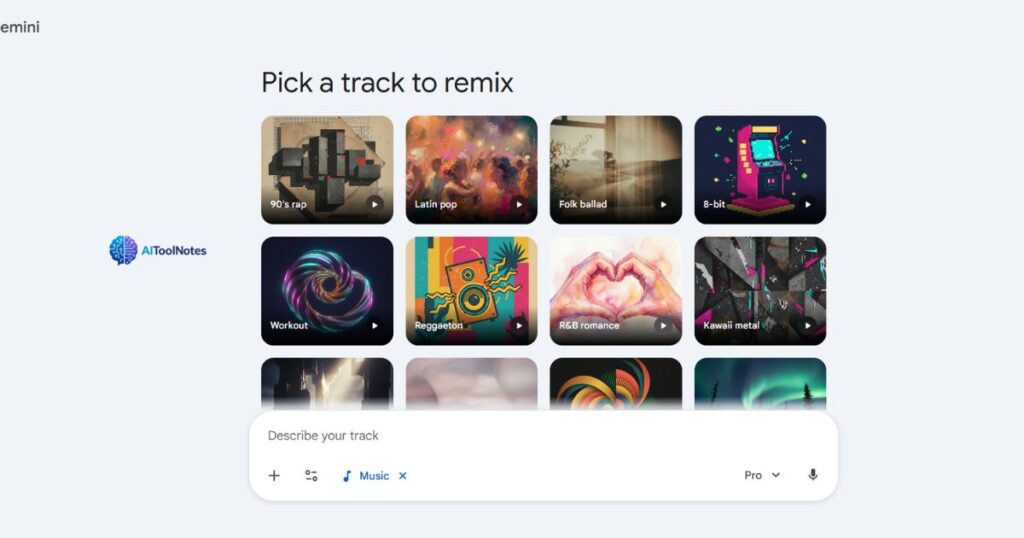
As shown in the image, the interface provides a selection of pre-existing tracks you can “remix,” such as “90’s rap,” “Latin pop,” and “Folk ballad.” Below these options is a text input field where you can “Describe your track,” with the “Music” tag active. This simple, clean design makes it incredibly easy to start generating music directly from your PC. The “Pro” indicator at the bottom right confirms that these features are running on the Gemini Advanced plan, which offers higher limits and faster speeds.
How It Works & Why It’s Different?
Most basic AI music generators effectively create “muzak”—background loops that sound repetitive and robotic. Lyria 3 is built differently. It understands the complex structure of a song, including verse, chorus, rhythm, and—most importantly—vocals and lyrics.
Here is what makes this update significant for creators:
- True Song Generation: Unlike older tools that just produced instrumentals, Lyria 3 can generate coherent lyrics and vocal tracks in various styles (from R&B crooning to fast-paced rap) based on your prompt.
- Multimodal Input (The “Pro” Feature): This is where Gemini shines. You aren’t limited to typing “make a sad song.” You can upload a video clip from your PC or a photo from a recent trip, and ask Gemini to “compose a soundtrack that matches the vibe of this image.” The model analyzes the visual context and generates audio to fit.
- Automatic Album Art: In a nice touch for presentation, Gemini uses its Nano Banana image model to automatically generate custom album cover art for every track it creates, giving you a complete package ready for sharing.
Pro Tip for Advanced Users: While the feature is rolling out to everyone, Gemini Advanced subscribers (like yourself) receive higher generation limits and faster processing speeds. This means you can iterate on track variations much quicker than free users—perfect for when you are trying to nail the perfect intro for a video project.
Key Features of Gemini Music Generation
Google hasn’t just added a “play” button; they have built a comprehensive creation suite. For creators and developers using the web dashboard, here are the standout features you need to know:
- Quick 30-Second Clips: Currently, Gemini generates high-quality audio tracks of approximately 30 seconds. This length is ideal for social media intros, TikTok backgrounds, or YouTube Shorts, though we expect longer durations in future updates.
- Multimodal Prompts (Text, Image, & Video): This is the “killer feature.” You aren’t limited to text. You can upload a photo of a sunset or a video clip of a city street, and Lyria 3 will analyze the visual mood to compose a matching track.
- AI Album Art (Powered by Nano Banana): You don’t just get an audio file. For every track you generate, Gemini uses its new “Nano Banana” image model to render custom, high-fidelity album art that matches the song’s genre and vibe.
- Invisible Watermarking (SynthID): To ensure responsible use, every audio file is embedded with SynthID. This is an imperceptible watermark that allows Google and other tools to identify the content as AI-generated, protecting against deepfakes and copyright misuse without affecting audio quality.
Step-by-Step: How We Created a “Cinematic Tech” Soundtrack
To show you exactly how powerful this tool is, I didn’t just read the manual—I put Gemini Advanced to the test. I wanted to create a professional background track for a tech product launch.
Here is my exact workflow, step-by-step.
Step 1: Explore the Genre Library
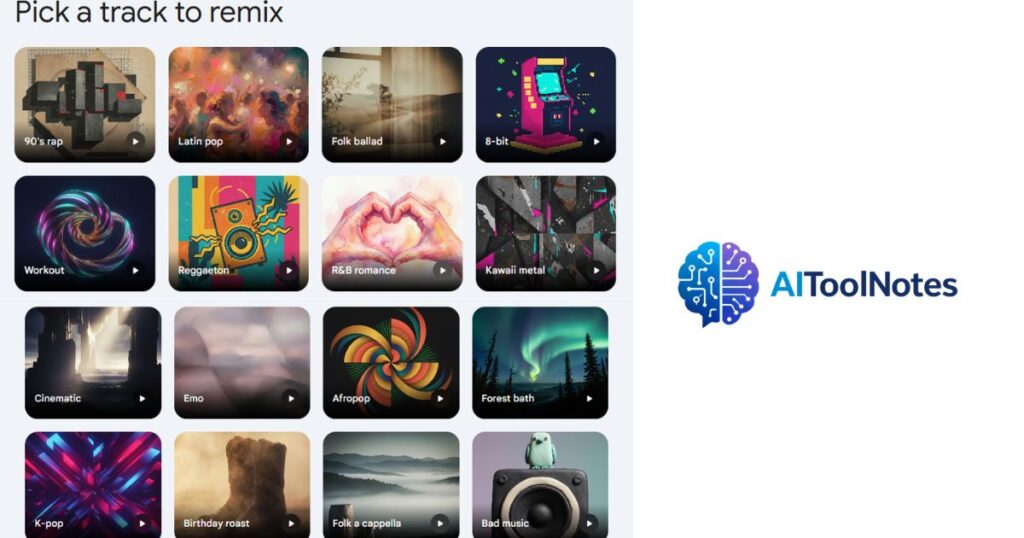
When you first open the Music interface in Gemini, you are greeted with a curated dashboard. As you can see in the screenshot below from our testing, there are currently 16 distinct genre tiles available to start with, ranging from “90’s Rap” and “Latin Pop” to “K-pop” and “Forest Bath.”
Step 2: Select a Base Style
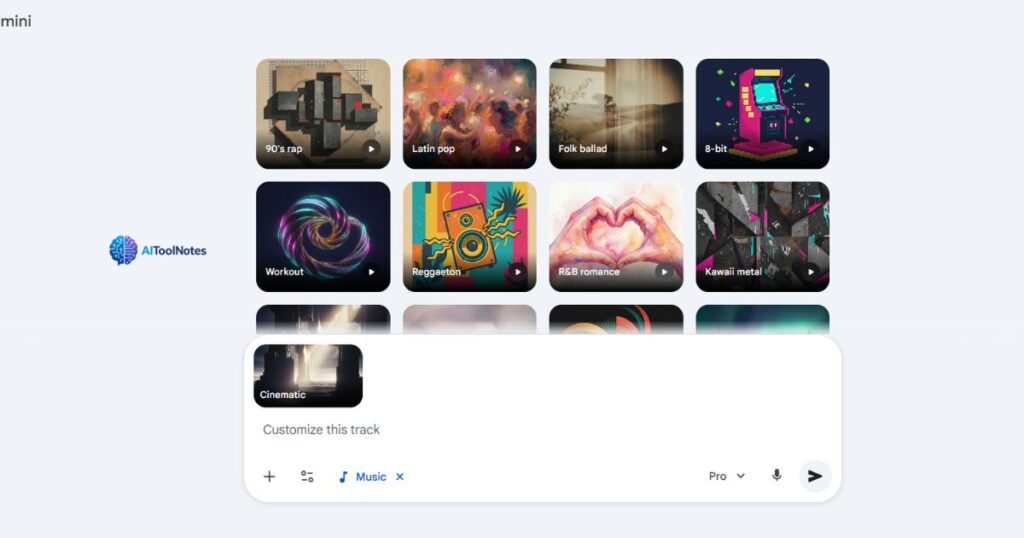
For this test, I wanted something dramatic and inspiring, so I ignored the pop genres and selected the “Cinematic” tile.
What happens next is interesting: Gemini doesn’t just instantly generate a generic song. Instead, it opens a “Customize this track” window. This allows you to use the “Cinematic” style as a foundation but steer the AI in your own direction.
Step 3: The “Pro” Prompt Strategy
This is where you can separate yourself from the average user. Instead of just clicking “Send,” I wrote a highly detailed prompt to control the mood, instruments, and tempo.
Here is the exact prompt I used:
“Create an uplifting cinematic soundtrack for a tech product launch video. Start minimal with ambient synth pads, then introduce rhythmic pulses and uplifting strings. Add subtle electronic elements with cinematic drums. Build steadily toward a grand inspiring finale. Mood: futuristic, confident, innovative. Tempo 115 BPM.”
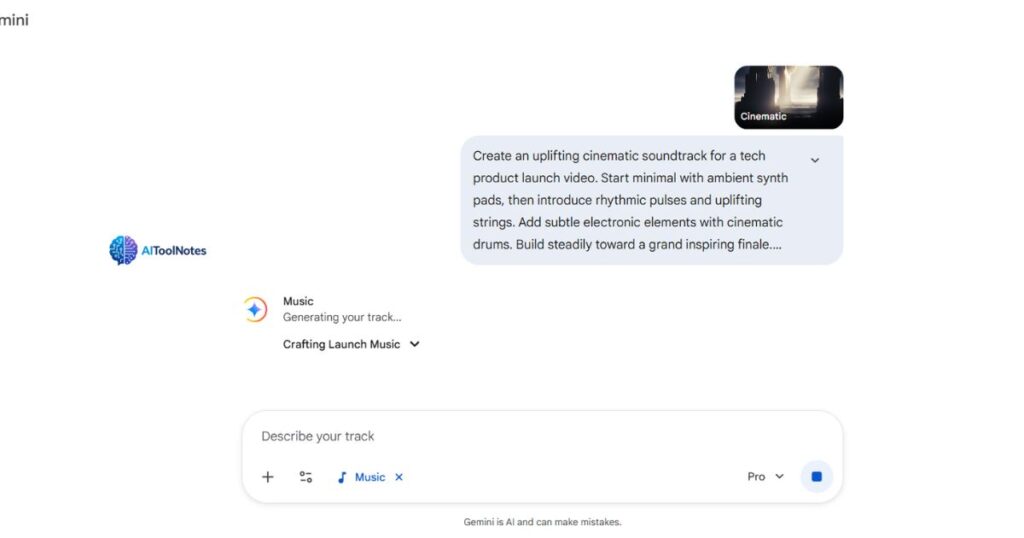
Why this prompt works:
- Structure: I told it how to start (“minimal”) and how to end (“grand finale”).
- Instruments: I requested specific sounds (“synth pads,” “uplifting strings”).
- Technical Details: I even specified the tempo (115 BPM), which Lyria 3 can actually understand.
Step 4: The Result (Listen Below)
Within seconds, Gemini processed the request. As you can see in the final screenshot, it didn’t just give me an audio file—it generated a unique piece of abstract album art featuring futuristic wings and a cityscape to match my “tech launch” vibe.
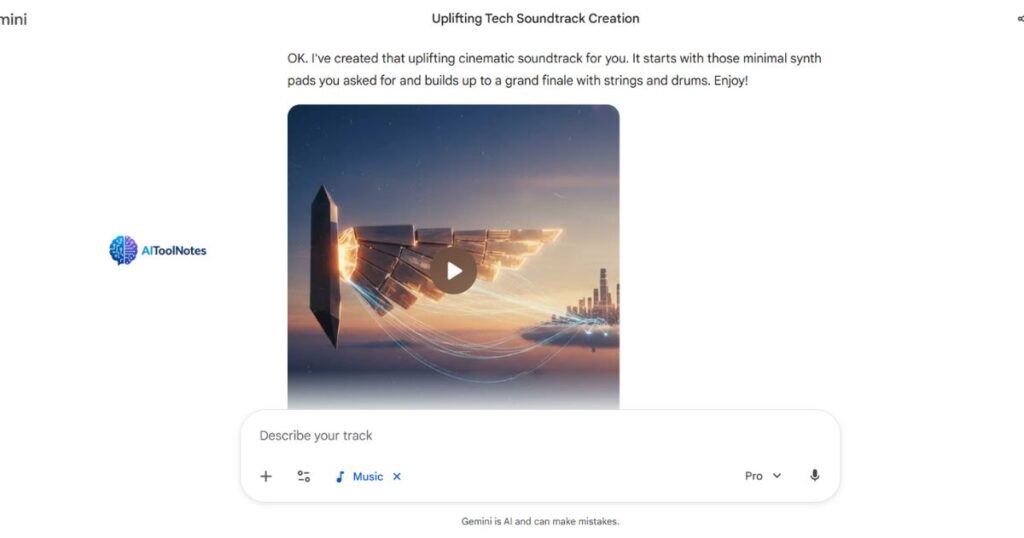
The result was exactly what I asked for: a building, rhythmic track perfect for a video intro. You can listen to the actual track I generated right here:
Important Safety & Copyright Rules
This is the most critical part for anyone using AI tools. Google has built Lyria 3 with strict guardrails to prevent copyright lawsuits, and understanding them will keep your account safe.
- No “Deepfakes” Allowed: You cannot ask Gemini to “Make a song that sounds exactly like Taylor Swift” or “Cover this Beatles song.” If you try, the safety filters will block the request.
- What to do instead: Ask for a vibe or genre. For example, instead of asking for a specific artist, ask for “a 1989-style synth-pop track with catchy female vocals.” Gemini uses artist names only as “broad creative inspiration,” not for imitation.
- Invisible Watermarking (SynthID): To maintain trust, every single track you generate is embedded with SynthID. This is an imperceptible digital watermark that allows Google (and other detection tools) to identify the audio as AI-generated.
- Why this matters: It protects you from accusations of stealing real music, as the file carries its own “digital signature” proving it was created by AI.
- Commercial Use: As of now, Google states these tracks are for “creative expression”. While you can use them in your YouTube videos, always check the specific Terms of Service if you plan to sell the audio files directly.
My Review: Is Gemini Better than Suno or Udio?
I’ve used Suno AI and Udio extensively, so how does Google’s new tool stack up?
The Verdict: Gemini is the best “casual” creator tool, but it hasn’t replaced the dedicated music platforms yet.
Where Gemini Wins:
- It’s Completely Free & Integrated: You don’t need to pay for a separate subscription or manage credits on a new site. It lives right inside your Google account.
- Multimodal Magic: Neither Suno nor Udio can currently look at a video clip you uploaded and score it instantly. This feature alone makes Gemini the winner for video editors.
- Visuals Included: The automatic generation of album art (via the Nano Banana model) saves you an extra step when sharing.
Where It Falls Short:
- The 30-Second Limit: Currently, Gemini is strictly capped at 30-second clips. Suno and Udio allow you to generate full 2-4 minute songs with extensions.
- Less Granular Control: Udio offers advanced features like “inpainting” (fixing just one part of a song). Gemini is more of a “one-shot” generation tool—you get what you get.
Conclusion
Google’s integration of Lyria 3 into Gemini is a massive step forward. It transforms AI music from a niche hobby into a mainstream tool available to millions of users instantly. While it might not produce a 3-minute radio hit just yet, it is hands-down the fastest way to get copyright-free intro music, background loops, or fun audio concepts for your content.
I want to hear from you! Have you tried the “Cinematic” mode yet? Copy and paste your best funny lyrics or prompts in the comments below—I’d love to see what you’re creating!