Gourav
 I’ll be upfront with you — I’m not a designer. I don’t own Illustrator, I don’t know how to use Figma, and I’ve spent an embarrassing amount of time trying to make logos in Canva that ended up looking like every other Canva logo out there. So when someone told me I could get a genuinely professional-looking 3D logo using AI, completely for free, I was skeptical. Not mildly skeptical — fully skeptical.
Then I tried it. And I kind of can’t stop thinking about how much time I wasted before this.
What Got Me to Try This in the First Place?
I was working on a small personal project and needed a logo that didn’t look like I’d made it in five minutes on a free tool. The irony, of course, is that I ended up making it in five minutes on a free tool — but the result looked nothing like that. I’d seen people talking about Ideogram.ai in a few online communities and noticed that unlike most AI image generators, it actually handles text inside images well. That detail matters a lot when you’re making a logo where your brand name needs to be readable and clean.
What really changed the game for me, though, was pairing Ideogram with ChatGPT. I’ll explain why that combination is so much more powerful than just typing something vague into an image generator and hoping for the best.
The Two Tools I Used and Why They Work So Well Together
The whole process runs on just two free platforms. ChatGPT handles the creative brief — it translates your simple idea into a detailed, design-focused prompt that an AI image generator can actually work with. Ideogram.ai is the image generator that takes that prompt and turns it into finished logo designs, complete with 3D shading, depth, and clean typography.
Here’s a quick look at how the two tools compare in terms of what they bring to the process:
| Feature | ChatGPT | Ideogram.ai |
|---|---|---|
| Primary role | Prompt generation | Image creation |
| Cost | Free (basic tier) | Free |
| Design knowledge needed | None | None |
| Output type | Text prompt | Visual logo files |
| Time to result | Under 30 seconds | 10–15 seconds |
| Best for | Writing optimized prompts | Generating logo variations |
| Text-in-image quality | N/A | Excellent |
| Download without watermark | N/A | Yes |
What makes this pairing so effective is that neither tool alone would give you the same result. If you go straight to Ideogram with a basic prompt like “eagle logo, 3D, blue,” you’ll get something okay. But when ChatGPT writes the prompt for you — specifying lighting direction, material texture, color palette, composition style, and dimensional details — the output jumps to a completely different level of quality.
Step 1: Getting ChatGPT to Write the Prompt
The first thing I did was open ChatGPT and use a specific prompt template designed for logo creation. The template is simple to use — you just swap out a placeholder word (in the original example it’s “eagle”) with whatever concept, animal, object, or symbol you want at the center of your logo.
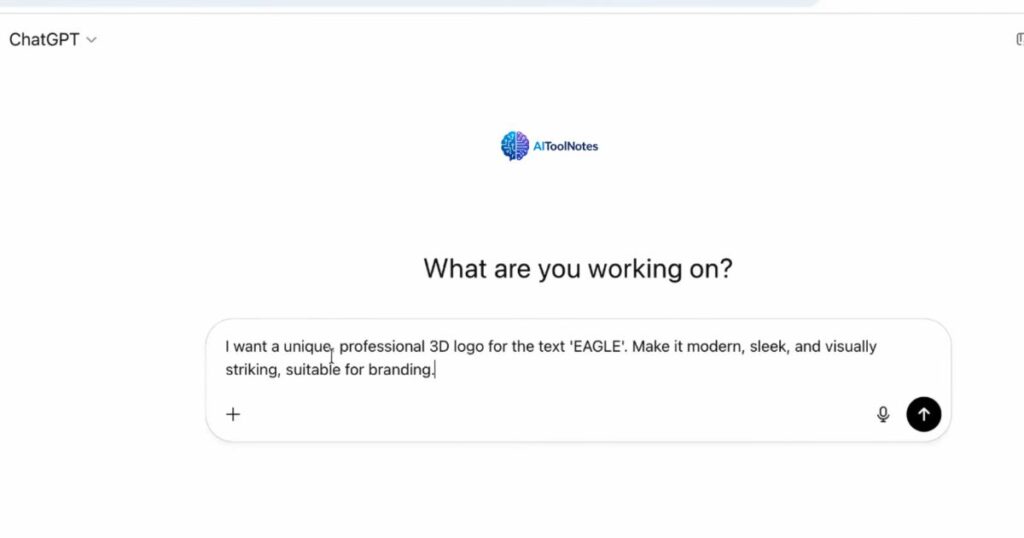
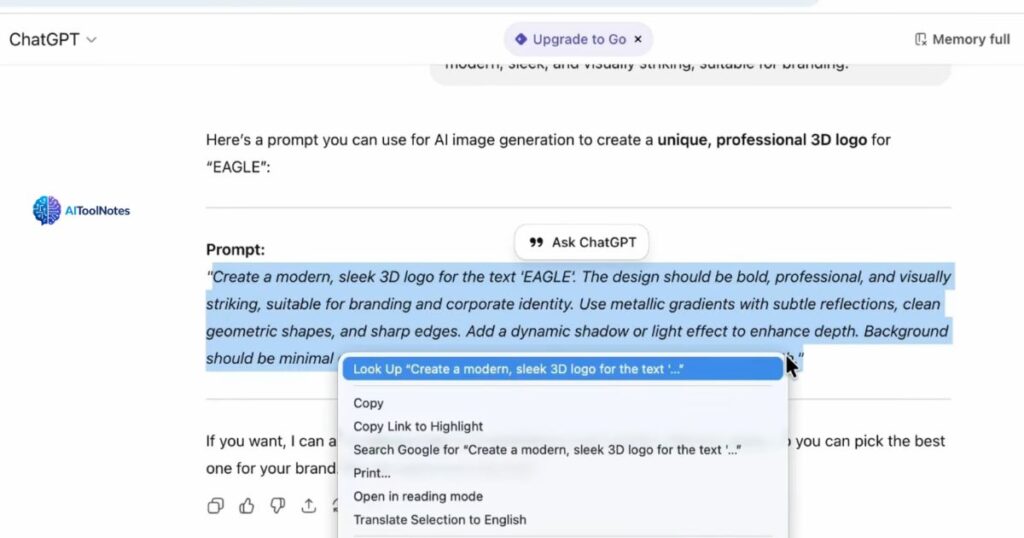
I typed it in, hit enter, and ChatGPT produced a detailed paragraph that read more like a professional design brief than a search query. It described the exact style, finish, lighting, and composition in language that AI image generators respond to really well. I wouldn’t have written something like that on my own — and that’s exactly the point. Once it appeared, I copied the whole thing and moved on.
Step 2: Pasting the Prompt Into Ideogram.ai
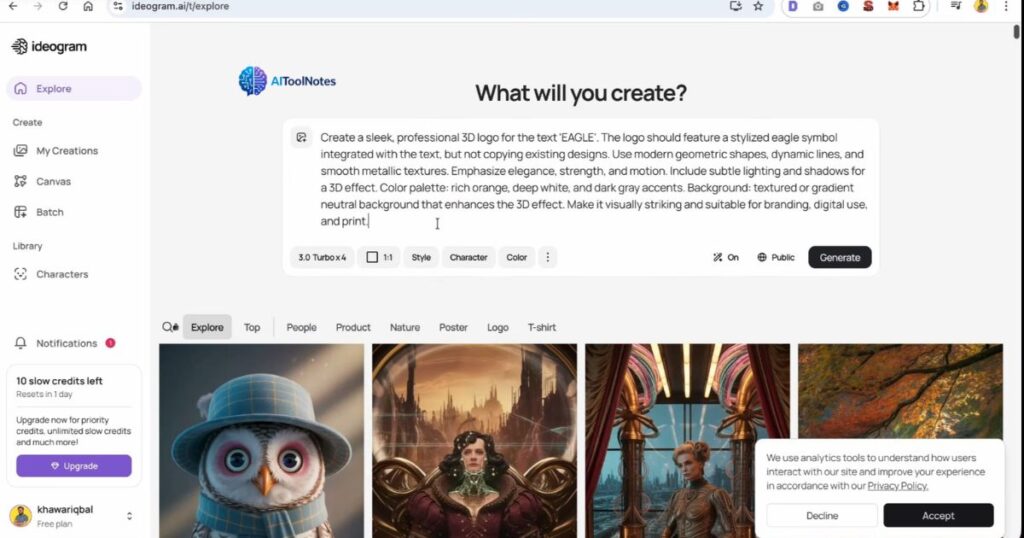
I went to Ideogram.ai and logged in using my Google account. The login took about ten seconds — no credit card, no lengthy signup form. Once I was in, I pasted the ChatGPT prompt into the text field and clicked generate.
What came back genuinely surprised me. In the time it took me to pick up my coffee, I was looking at a full grid of logo options, all rendered in a clean 3D style with proper shading and depth.
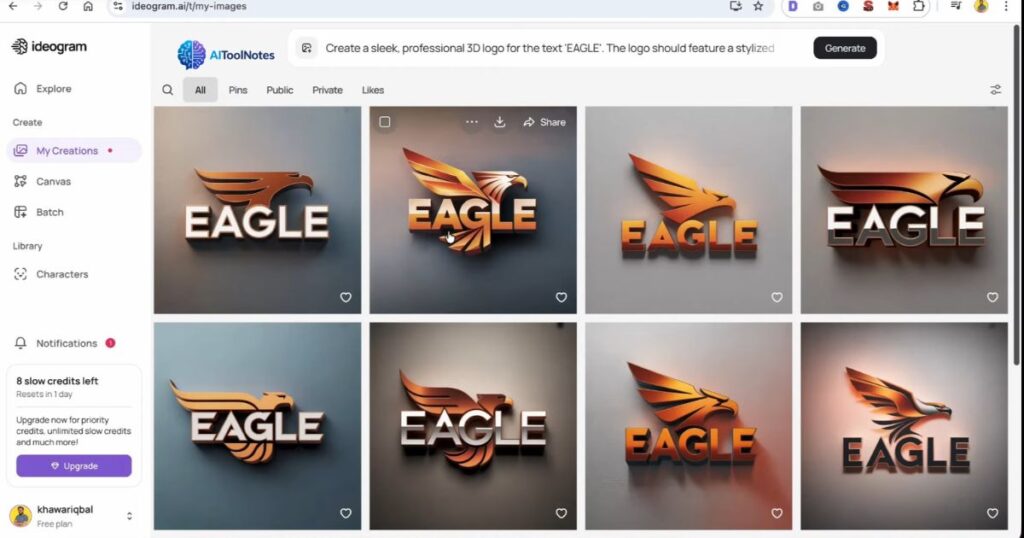
They didn’t look like generic AI art. They looked like something a freelance designer might send over as a first round of concepts. If any of the variations didn’t feel right, I could just regenerate and get a fresh batch — no penalty, no cost, no waiting.
Step 3: Choosing and Downloading the Final Logo
Going through the options, one stood out immediately. The proportions felt balanced, the 3D effect was well-executed, and the overall composition had a confidence to it that the others didn’t quite match. I clicked on it, hit the download button, and it saved straight to my device. Clean file, no watermark, nothing else required.
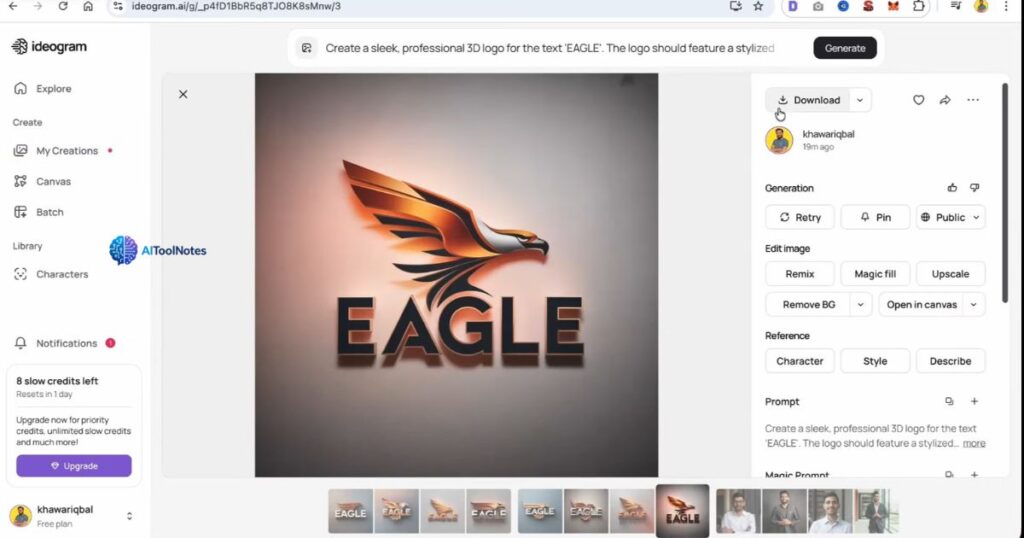
The whole process from opening ChatGPT to having a logo file on my desktop took under five minutes. I’ve spent longer than that trying to pick a font in Canva.
My Honest Take After Using It
I want to be genuine here because I think it’s easy to oversell these kinds of tools. The results are impressive — more impressive than I expected — but they’re not magic. The 3D rendering is genuinely good, the text handling in Ideogram is better than any other free tool I’ve used, and the ability to iterate quickly means you’re not stuck with your first result if it doesn’t land the way you hoped.
What you won’t get is a vector file. The downloads are raster images, which is fine for most digital uses but can be limiting if you need to scale the logo up for print or merchandise. You also won’t get the kind of precise brand control you’d have working with a designer who can adjust exact hex codes and custom typefaces. For a side project, a personal brand, or an early-stage business that needs something credible without a big budget, though, this is genuinely hard to argue with.
The other thing I’d say is don’t skip the ChatGPT step. It feels like an unnecessary extra step when you could just go straight to Ideogram, but the quality difference is noticeable. Letting ChatGPT write the prompt for you is what separates a result that looks polished from one that looks like a stock icon.
Would I Recommend This to Someone Else?
Without hesitation. If you have a project that needs a logo and you’re not ready to spend money on a designer, this is the most capable free option I’ve come across. It’s fast, the barrier to entry is basically zero, and the results hold up better than I expected. The combination of ChatGPT and Ideogram has become my go-to starting point for any visual branding work, even before I consider paid alternatives.