Gourav
 Introduction
Getting the whole family together in one room is almost impossible these days. Between conflicting work schedules, weekend activities, and the sheer distance separating everyone, coordinating a single group photo can feel like trying to solve a puzzle with missing pieces.
Usually, my day revolves around testing complex software and analyzing the latest digital trends for AI Tool Notes. But recently, I found myself needing a highly practical solution for a deeply personal project: stitching together individual photos of relatives into one cohesive family portrait.
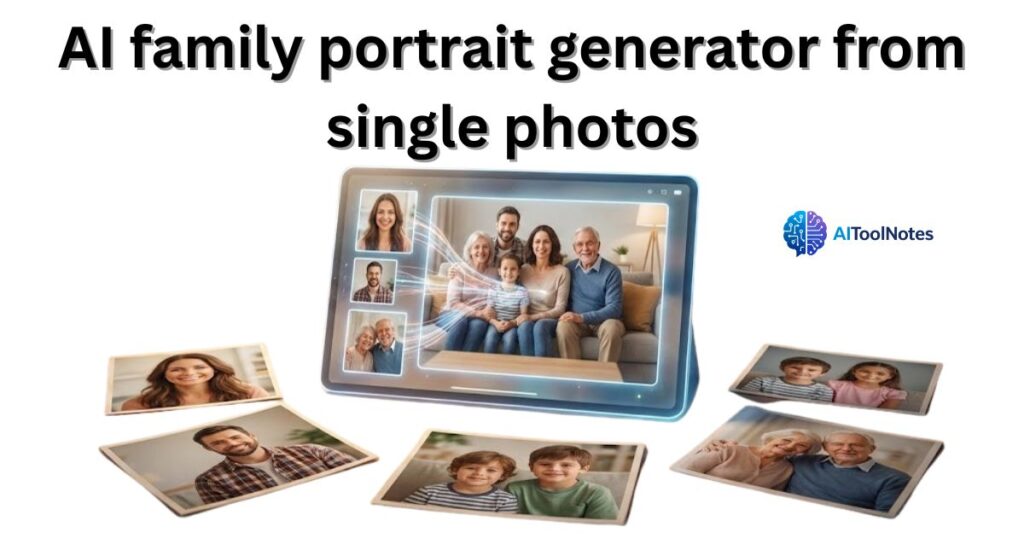
I realized that while the tech industry loves to obsess over complicated enterprise software, everyday folks are often left out of the conversation. That is why I am cutting through the tech jargon today. I want to share the best free AI tools that actually work for real people who just want to see their loved ones in the same frame.
Why merging photos used to give me a headache?
If you have ever tried to combine pictures manually, you know exactly how frustrating traditional editing can be. I used to spend hours hunched over a screen in Photoshop, meticulously trying to mask backgrounds, erase stray hairs, and fix awkward lighting that made everyone look like they were standing in completely different time zones. It was exhausting.
Recent 2025 industry data shows that AI image editing is currently the fastest-growing software category—experiencing a massive 441% year-over-year growth in usage. But despite this massive tech boom, the reality is that most people do not have a graphic design degree. You shouldn’t have to spend your weekends learning complex interfaces or mastering layer masks. You just want a quick, realistic picture to frame for the living room wall or to share in the family group chat.
The best free AI tools I actually tested (So you don’t have to)
To give you advice that actually works, I didn’t just read the marketing brochures for these platforms. I sat down and actively tested these generators using individual photos of my own family members. My goal was simple: cut through the hype and find out which ones deliver on their promises. Here are the actionable insights from my testing to help you pick the right tool for your project.
1. Fotor AI Group Photo Generator
If you get easily overwhelmed by complex software interfaces, Fotor is going to be your best friend. My experience with it was incredibly straightforward, making it easily the most beginner-friendly option on this list.
The standout detail: It effortlessly lets you upload 2 to 4 individual pictures and automatically merges them into a cohesive group photo. It handles the heavy lifting of figuring out where everyone should stand, instantly placing people side-by-side in a way that feels natural and completely automated.
2. Media.io AI Group Photo Generator
When it comes to pure visual realism, Media.io truly shines. A common issue with basic photo mergers is that they leave people looking like floating heads awkwardly pasted onto a background—but this tool tackles that problem head-on.
The standout detail: This platform is powered by Gemini AI technology, which is incredibly good at matching ambient lighting, balancing body proportions, and generating natural, relaxed poses. The end result genuinely looks like everyone was standing in the exact same room, sharing the exact same light source.
3. FlexClip AI Group Photo Generator
FlexClip takes things a step further by offering professional-grade features without forcing you to get too technical. It uses advanced, high-end models like Nano Banana Pro to achieve a remarkably seamless blending effect between the different subjects and the background.
The standout detail: Beyond just blending photos beautifully, FlexClip has a unique feature that can turn your static group portrait into a dynamic video. If you want to create an engaging social media post or a memorable digital greeting card, animating the photo adds a fantastic extra layer of life to your family memory.
Quick comparison of my top picks
| AI Tool Name | Ease of Use | Best Feature |
| Fotor AI | Super easy | Perfect for combining 2-4 photos instantly |
| Media.io | Easy | Incredible realism powered by Gemini AI |
| FlexClip | Moderate | Can animate the final photo into a video |
Step-by-step: How I made my family portrait
When I finally decided to sit down and create a portrait that included my wife and the rest of our extended family, I didn’t want to overcomplicate things. I just wanted a result that looked natural enough to frame for the living room. If you are feeling overwhelmed by the thought of doing this yourself, take a deep breath. Here is the exact, jargon-free process I used—no graphic design experience required.
Step 1: Pick the right solo shots
The AI needs good raw materials to work with. I scoured my phone for clear, well-lit photos where everyone is facing forward. Try to avoid pictures where faces are heavily shadowed, angled away from the camera, or covered by sunglasses. The better the original photos, the more seamless the final blend will be.
Step 2: Choose your tool
Out of the platforms I tested above, I highly recommend starting with Media.io. Because it is powered by current Gemini AI technology, it offers the most reliable realism for matching skin tones and room lighting right now, which is crucial for making the group photo look authentic.
Step 3: Upload your single photos
Once you have your tool open, simply gather the individual pictures you selected in Step 1 and upload them directly into the generator’s dashboard.
Step 4: Write a simple prompt
You don’t need to write a complex paragraph or understand coding terminology here. Just tell the AI exactly what you want the final scene to look like. Feel free to copy and paste the exact template I used:
“A realistic family portrait sitting together in a bright, cozy living room, natural lighting, looking at the camera.”
Step 5: Hit generate and refine
Click generate and wait the 10 to 15 seconds it typically takes for modern 2026 AI models to process the image. Here is a quick reality check: it might take a few tries to get it absolutely perfect. If someone’s posture looks a little stiff or the background feels cluttered, just tweak your prompt slightly and generate it again until you get that frame-worthy shot.
My quick tips to avoid AI glitches
During my testing for AI Tool Notes, I definitely had a few laugh-out-loud moments. As advanced as AI image generation has become in 2026, it still has the occasional digital hiccup. In one of the early drafts of my own family portrait, the AI decided my wife needed a third hand playfully resting on my shoulder—even though her actual two hands were clearly folded in her lap!
To save you from creating a gallery of multi-fingered mutants or floating limbs, here are the actionable tips I learned to keep things looking natural:
- Keep your background prompt simple: If you ask the AI to generate a highly complex background—like a busy park with flying kites and running dogs—it uses up its processing power there and starts making mistakes on the faces. Stick to simple settings so the AI focuses its energy on your family.
- Avoid heavy, dark shadows in your original photos: If your solo upload has a harsh shadow covering half of someone’s face, the AI will often misinterpret those dark spots as strange facial features or completely distort the skin tone. Bright, evenly lit photos are your best friend.
- Hit that “regenerate” button: If you get a result with an extra hand or a wonky eye, do not panic. Simply clicking the regenerate button usually forces the AI to correct its own mistakes on the second or third try, giving you a flawless final image.
Final thoughts on making AI practical
So, this brings us to the big question: Can an AI-generated portrait ever truly replace the magic of hugging your relatives and creating real family memories? Absolutely not. Nothing replaces the real thing.
But when life, distance, and wildly conflicting schedules keep everyone apart, this technology is an amazingly practical, heartwarming alternative to having no group photo at all. It is a simple way to bring everyone together in one frame, even if you can’t be in the same room.
Which of these tools are you going to try for your family photos? Let me know in the comments below!