Gourav
 Adobe Photoshop Firefly AI is a new and exciting tool. It helps you make pictures using artificial intelligence. AI means the computer is very smart. It can understand what you want to create.
This tool is part of Adobe Photoshop. Adobe is a big company. They make software for artists and creative people. Firefly AI makes art creation easy. Even kids can use it!
You just type what you want to see. The AI will make it for you. It’s like magic! You can create new images. You can change old photos. You can add fun effects. The AI does all the hard work.
Firefly AI is perfect for students, artists, and anyone who loves pictures. You don’t need special skills. Just use your imagination. The pro account gives you extra features. It has more tools and options than the free version.
Adobe Photoshop Firefly AI Dashboard Overview
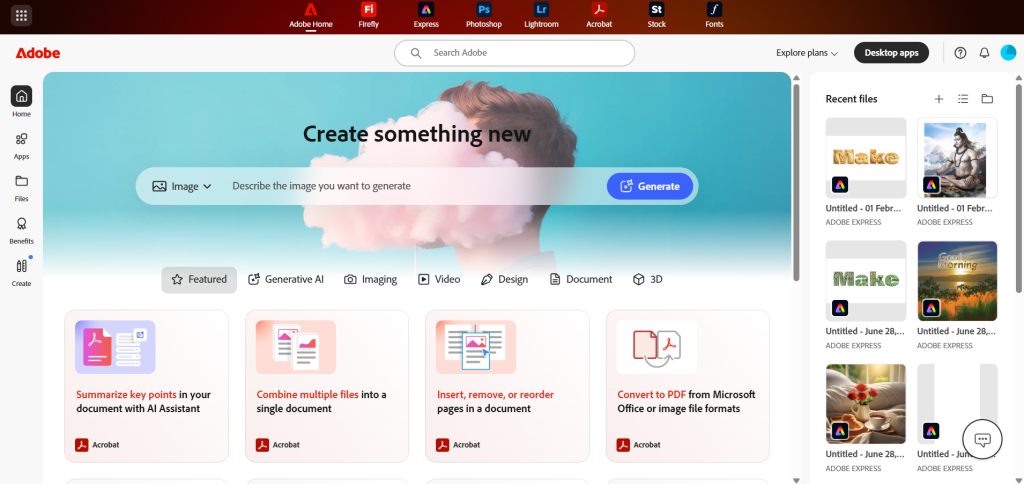
The dashboard of Adobe Photoshop Firefly AI is clean, bright, and easy to understand. Everything is placed in a simple way, so new users do not feel confused.
At the top of the dashboard, a large section says “Create something new.” Below this, there is a text box where users can type what kind of image they want to make. After typing the idea, clicking the Generate button creates images using AI.
The top menu shows tools like Firefly, Express, Photoshop, Lightroom, Acrobat, Stock, and Fonts. These options help users move to other Adobe tools from the same screen.
On the left side, there are clear buttons such as Home, Apps, Files, and Create. These buttons help users find their work and start new projects quickly.
On the right side, the Recent Files section shows previously created images and designs. This makes it easy to open old work and continue editing.
Overall, the Adobe Photoshop Firefly AI dashboard is simple, beginner-friendly, and well organized. It helps users start creating images without any hard steps.
Since this post is about Adobe Photoshop Firefly AI, the Firefly option is chosen from the top menu. This opens the Firefly page, where all AI image tools are shown in one simple place.
About the Adobe Firefly Dashboard
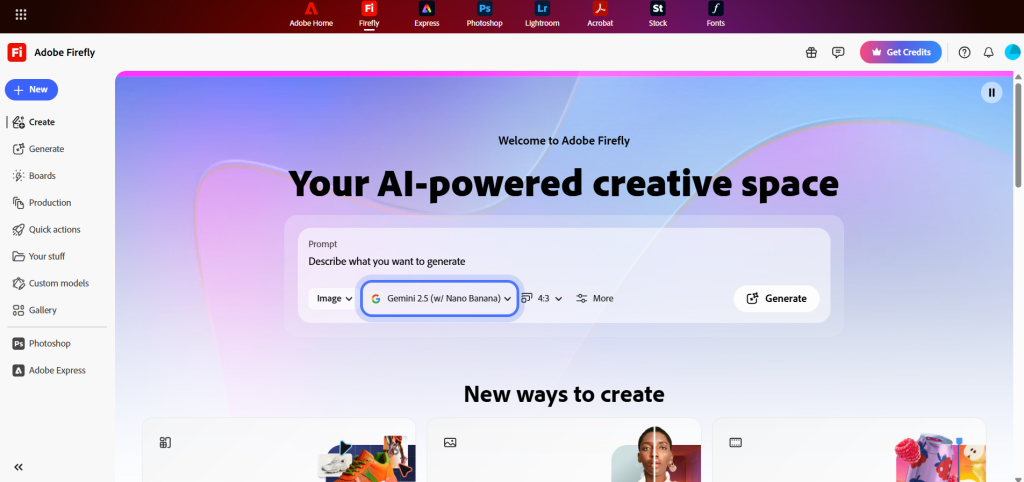
When I first opened the Adobe Firefly dashboard, I was amazed! The screen looks so colorful and welcoming. At the top, I can see a beautiful gradient background with pink and blue colors. It really catches my eye.
The big text in the middle says “Your AI-powered creative space.” This makes me feel excited to start creating. Right below that, I see a prompt box. This is where I can type what I want to make. The box says “Describe what you want to generate.” It’s very clear and simple.
I noticed that I can choose different AI models. The dashboard shows “Gemini 2.5 (w/ Nano Banana)” as an option. I can also pick the image size with the “4:3” button. There’s a “More” button for extra settings. On the right side, there’s a big “Generate” button. I just click it after typing my idea.
On the left side of my screen, I see a helpful menu. There are many options like “Create,” “Generate,” “Boards,” and “Production.” I also see “Quick actions,” “Your stuff,” and “Gallery.” Each option has a small icon next to it. This makes it easy for me to find what I need.
At the bottom, I can see “New ways to create” with example images. These give me ideas about what I can make. The dashboard also has links to Photoshop and Adobe Express. Everything is organized nicely.
In the top right corner, I see a pink “Get Credits” button. This tells me about my account credits. Overall, the dashboard is clean and not crowded. I feel like I can start creating right away. Everything is in the right place. Even as a beginner, I understand how to use it!
Adobe Firefly Dashboard Credits
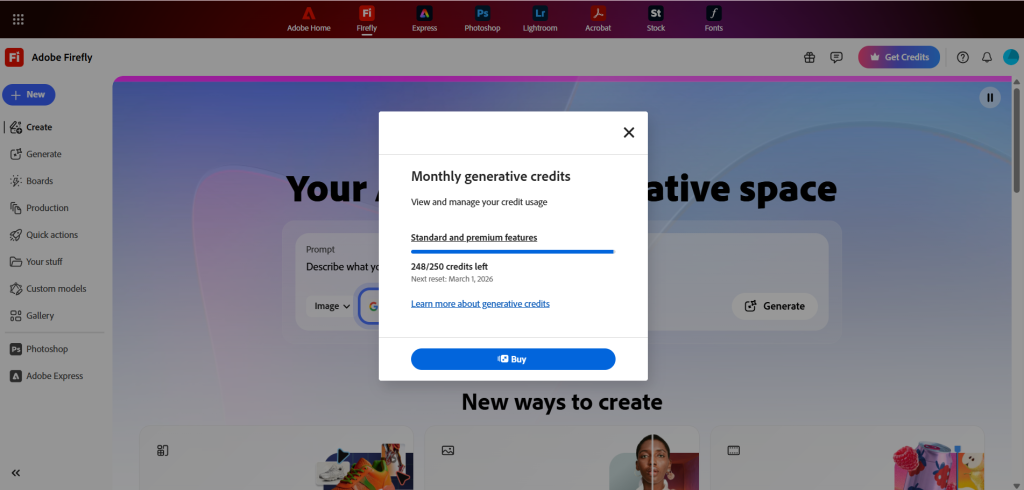
I clicked on the Get Credits button on my dashboard. A small window opened on my screen. This window shows how many image credits I have for the month.
At the top of the window, I see the text “Monthly generative credits.” Below it, there is a line that helps me check and manage my credit use.
I also see a blue bar that shows my credit progress. Under the bar, it says “248/250 credits left.” This means I had 250 credits this month. I have used only 2 credits so far. I still have many credits left to create images.
The window also shows when my credits will refresh. It says “Next reset: March 1, 2026.” This means I will get 250 new credits again on that date.
There is a link that says “Learn more about generative credits.” This link helps me understand how the credit system works.
At the bottom, I see a blue Buy button. This button can be used to buy more credits if needed. Since I am using the Pro plan, I get 250 credits every month. This makes it easy to create many images without worry.
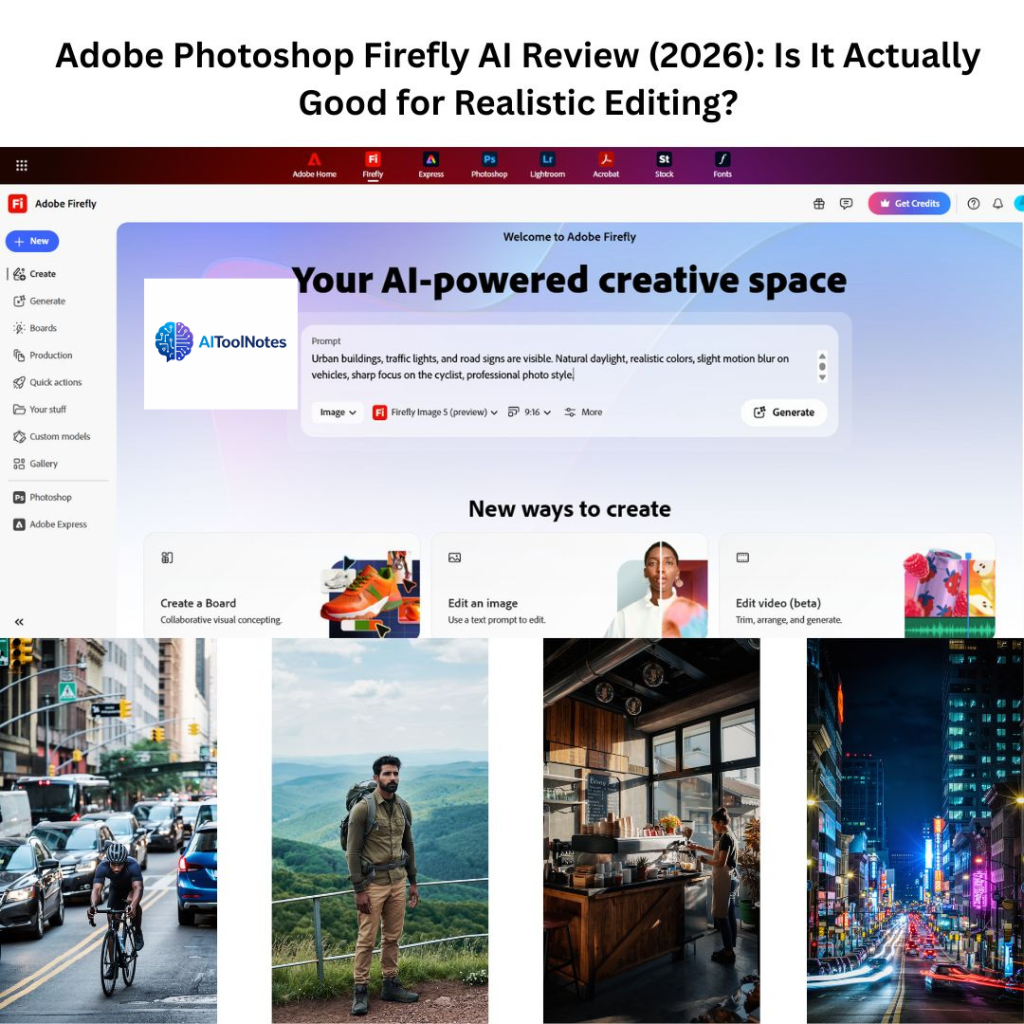
Prompt To Generate a Image
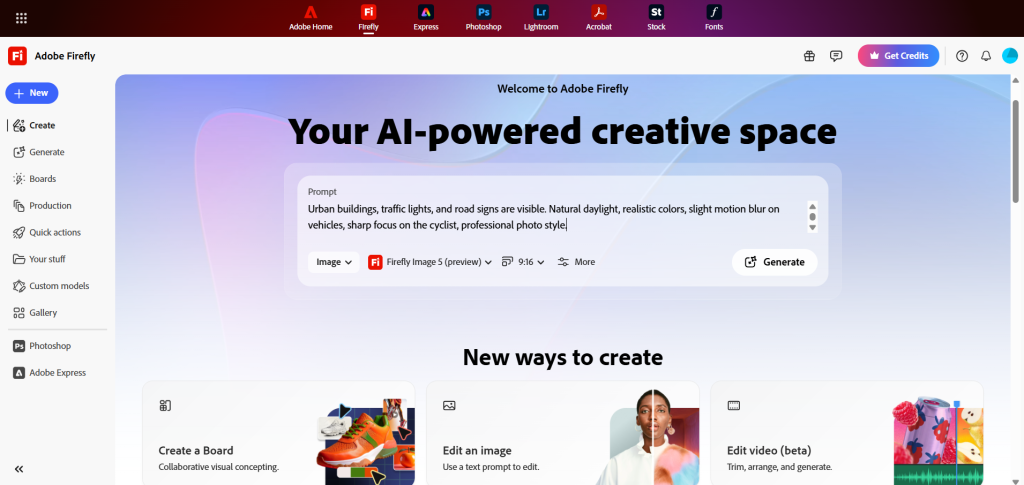
After opening the Adobe Photoshop Firefly AI dashboard, I added my image prompt in the main text box. The prompt clearly describes the scene so the AI can understand what kind of image to create.
I selected Image as the content type and chose Firefly Image 5 (preview) as the model. I also selected the 9:16 ratio, which is perfect for Instagram Reels and Stories.
In the prompt, I explained the scene in simple detail. I mentioned urban buildings, traffic lights, and road signs to show a real American city. I also added natural daylight, realistic colors, and slight motion blur on vehicles to make the image look real. I asked for sharp focus on the cyclist so the main subject stands out.
After setting everything, I clicked the Generate button. Firefly uses these settings and the prompt to create a realistic image.
Overall, the prompt box and settings are easy to use. Even beginners can create high-quality images by writing clear lines and choosing the right options.
Man Cycling Through Heavy Traffic in an American City
Here is the prompt:
A realistic photo of a man riding a bicycle on a busy American city road with heavy traffic. Cars, SUVs, and buses surround him on both sides. The man wears a helmet and casual cycling clothes, looking focused and confident. Urban buildings, traffic lights, and road signs are visible. Natural daylight, realistic colors, slight motion blur on vehicles, sharp focus on the cyclist, professional photo style.
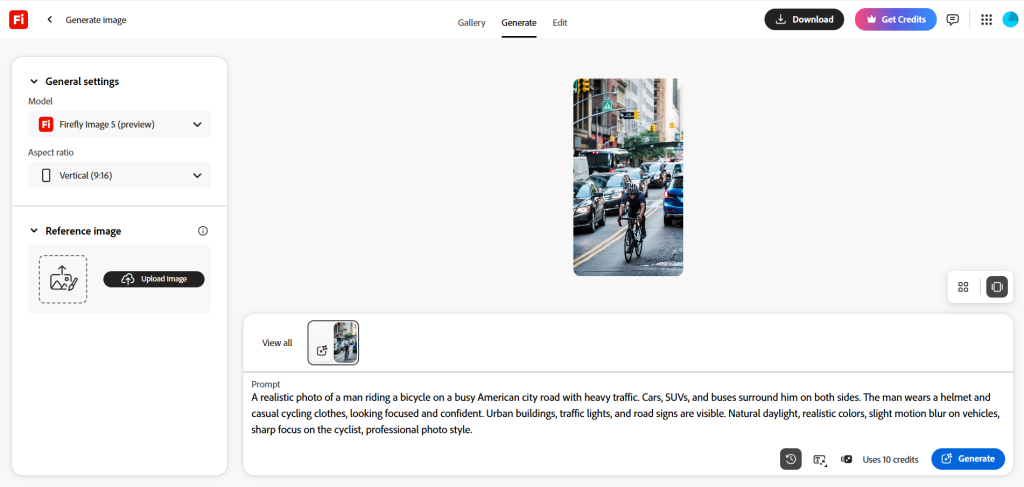
After clicking the Generate button, I received a realistic image created by Adobe Photoshop Firefly AI. The image clearly shows a man riding a bicycle on a busy American city road.
I can see heavy traffic around the cyclist. There are cars, SUVs, and buses on both sides of the road. This makes the scene look real and busy, just like a city street in the USA.
The man is wearing a helmet and casual cycling clothes. His body posture and face look focused and confident. The cyclist is sharp and clear, while some vehicles have slight blur, which shows movement and speed.
In the background, I can see tall buildings, traffic lights, and road signs. The daylight looks natural, and the colors feel real, not fake or cartoon-like. The image looks like it was taken with a real camera.
Overall, I am happy with the result. The image matches the prompt very well. Adobe Firefly AI did a great job creating a realistic and high-quality image that is perfect for Instagram Reels and Stories.
Each time I generate one image in Adobe Firefly AI, 10 credits are used.
You can see the generated image right here below:

Here are some more images generated using the same prompt.
Prompt 1: Morning Coffee Shop Scene
A realistic photo of a small coffee shop in the USA during morning time. Warm sunlight comes through the window. A barista is making coffee behind the counter. Coffee cups, a menu board, and plants are visible. Cozy mood, natural colors, professional photo style.

Prompt 2: Hiker at Mountain Viewpoint
A realistic photo of a man standing on a mountain viewpoint in the USA. He is wearing hiking clothes and a backpack. Green hills and a wide sky are in the background. Soft daylight, fresh air feeling, sharp focus, natural colors, professional photo style.

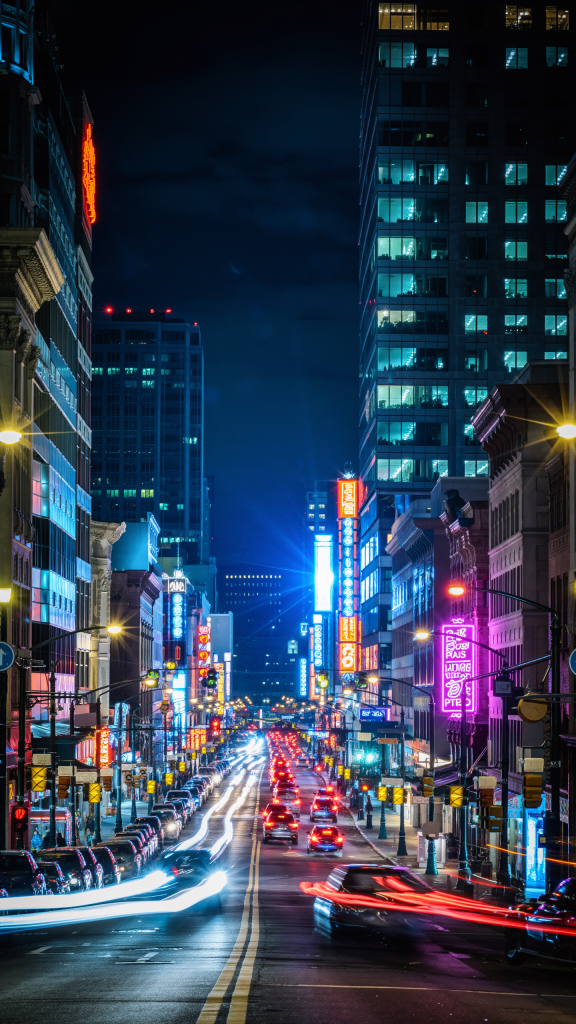
Prompt 3: Night City Street with Neon Lights
A realistic photo of a city street at night in the USA. Neon signs glow on buildings. Cars pass by with light trails. The street looks lively and modern. Night lighting, deep colors, slight motion blur, cinematic photo style.
Why Adobe Photoshop Firefly AI Is a Smart Choice for Image Creation?
Before moving to the conclusion, it is clear that Adobe Photoshop Firefly AI offers a simple and powerful way to create images. The tool is easy to use, even for beginners, and the results look realistic and high quality.
The dashboard, prompt system, and credit usage are all easy to understand. With clear options and smart AI features, creating images becomes fast and smooth. This makes Firefly AI a helpful tool for bloggers, creators, and social media users.
Conclusion
In conclusion, Adobe Photoshop Firefly AI is a smart and helpful tool for creating images using artificial intelligence. It makes image creation simple, fast, and fun. Anyone can use it, even beginners, because everything is clearly explained and easy to find.
The dashboard is clean and friendly. Writing prompts is simple, and the AI understands ideas very well. The credit system is also easy to track, so it is always clear how many images can be created. Each image uses credits, which helps manage usage in a fair way.
The image results look realistic and high quality. From city scenes to nature views and daily life moments, Firefly AI creates images that match the prompt closely. This makes it useful for blogs, social media, school projects, and creative work.
Overall, Adobe Photoshop Firefly AI is a great choice for students, creators, bloggers, and anyone who loves images. With its easy tools, clear dashboard, and powerful AI, it turns simple ideas into beautiful images without any hard effort.