Gourav
 Introduction: The Personal & Professional Hook
Running an e-commerce store in 2026—especially on fast-paced platforms like Meesho, Amazon, or Flipkart—means you are constantly racing against the clock. Whether you are a dedicated marketplace seller or managing a custom Shopify site, the biggest bottleneck is almost always the same: product photography. I vividly remember the “dark ages” of spending entire weekends manually cropping and removing backgrounds for just fifty items, only to realize the lighting looked different in every single shot. It was soul-crushing work that kept me away from actually growing the business.
Here at AI Tool Notes, I spend my days testing high-end software, but I recently took a step back to find a real-world solution for my own small e-commerce projects. I was faced with a mountain of 200 product shots that needed to be edited at once, and I needed it done without losing my mind—or my entire marketing budget. I’ve cut through the corporate hype to find the most efficient AI batch tools that actually work for sellers who need to get their listings live today, not next week.
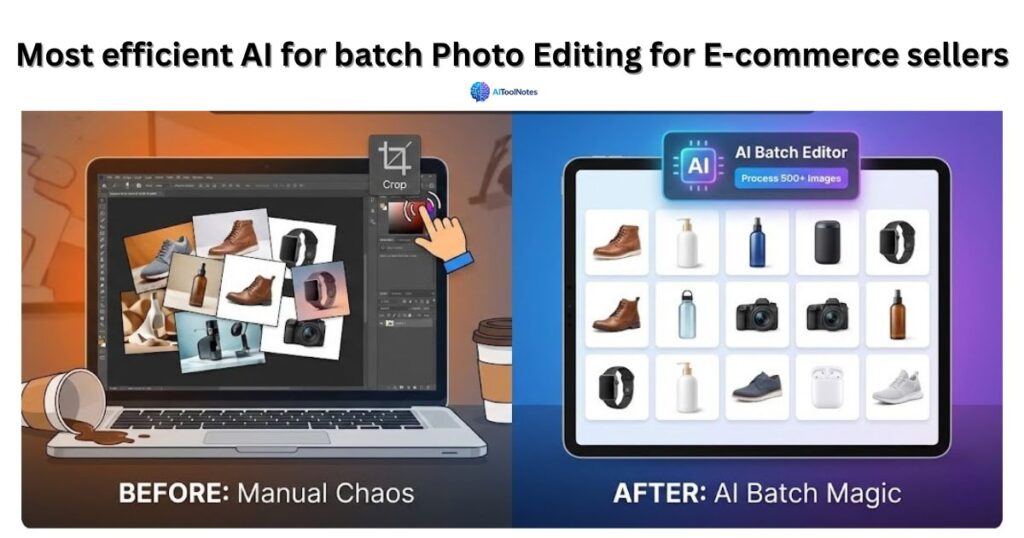
The Nightmare of Manual Batch Editing
Before AI truly took over the workflow, “batch editing” was usually a polite term for running a clunky Photoshop script that crashed halfway through your folder. You would spend hours painstakingly masking edges, only to find that the “automatic” process left jagged borders or weird artifacts on half your catalog. It wasn’t just slow; it was inconsistent.
Most sellers today don’t want a glamorous, high-fashion editorial; they just want a clean, professional look that meets strict marketplace guidelines without needing a degree in digital design. We need tools that understand the nuances of a product—like the delicate string of a flute or the texture of a skincare bottle—and separate it from the background in milliseconds, not minutes. In the current market, speed is our greatest competitive advantage.
The Best AI Batch Editors I Tested (2026 Edition)
I’ve personally run hundreds of images through these platforms to see which ones can actually handle the pressure of a high-volume catalog without crashing or producing “wonky” results. If you are looking to scale your store this year, these are the tools that survived my stress tests.
1. Photoroom (The E-commerce Champion)
Photoroom remains the gold standard for most independent sellers in 2026. Its dedicated Batch tool allows you to upload up to 500 images at once on their web app and remove backgrounds instantly with industry-leading accuracy. What I love most is the “Batch Shadows” feature; it adds consistent, realistic depth to every product in your batch with one click, ensuring your entire collection looks like it was shot in the same professional studio session.
2. Claid.ai (Best for Scaling High Volumes)
If you are managing thousands of SKUs or running a larger operation, Claid.ai is a total powerhouse. It uses generative AI to do more than just remove backgrounds; it can upscale resolution up to 4K and even place products into photorealistic lifestyle scenes automatically while preserving your brand’s specific textures and logos. It is built for teams that need unlimited batch capacity via API and perfect marketplace compliance across platforms like Amazon and eBay.
3. Pixelcut (The Mobile Seller’s Secret)
For those who run their entire business from their phone, Pixelcut is the fastest way to turn a raw photo into a sales magnet. It is incredibly popular for platforms like Etsy or Depop because of its ready-made marketplace templates that you can apply to a whole folder of photos at once. It even features advanced models like Gemini 2.5 Flash to help recognize complex image contexts for more natural-looking edits on the fly.
Quick Comparison: Which Tool Fits Your Store?
| AI Tool | Images per Batch | Best Feature | Starting Price (Approx.) |
| Photoroom | Up to 500 | Batch AI Shadows | ₹299 (~$3.60)/mo |
| Claid.ai | Unlimited (API) | 4K Upscaling & Fidelity | $9/mo |
| Pixelcut | Up to 100 | Marketplace Templates | Free / $10/mo |
Step-by-Step: My Workflow for Batch Editing
Look, I know how it feels to stare at a folder of 100 raw photos and wonder where your weekend went. To save your sanity and get your products live before your coffee gets cold, here is the exact, jargon-free process I use to get my inventory ready for Amazon and Flipkart in minutes.
- Step 1: The Bulk Upload Don’t overcomplicate this. Simply drag and drop your entire folder of raw product shots directly into the editor. Whether you are using a mobile-first tool or a desktop powerhouse, modern AI in 2026 can handle the simultaneous processing of dozens of high-resolution files without breaking a sweat.
- Step 2: Choose Your “Master” Look Instead of editing one by one, pick your best-lit photo to serve as the blueprint. Select this “Master” image and apply the background removal, brightness adjustments, and AI shadow settings you want. This sets the standard for the entire collection.
- Step 3: Sync the Settings This is where the magic happens. Use the tool’s “Sync” or “Apply to All” feature. In a single click, the AI replicates your master settings across every single photo in the batch. This ensures that whether a customer is looking at a red shirt or a blue one, the lighting and depth look like they were captured in the exact same professional studio session.
- Step 4: Review for Glitches AI is incredibly smart, but it’s not infallible. Take sixty seconds to quickly scroll through the results. Sometimes, a particularly shiny surface or a transparent glass bottle can trick the AI into “eating” a bit of the product edge. If you see a jagged line, a quick manual touch-up on that one specific photo usually fixes it.
- Step 5: Export and List Once you’re happy, hit the export button. I always recommend downloading the entire batch as high-quality JPEGs (for marketplaces) or transparent PNGs (if you’re adding custom graphics for your own site later). Now, your listings are polished, professional, and ready to start converting browsers into buyers.
Pro Tips to Avoid “AI Artifacts” in Your Listings
Look, AI is incredibly efficient in 2026, but it’s definitely not perfect yet. I’ve personally seen it “eat” the edges of a white skincare bottle on a white background more times than I care to count, leaving the product looking like it’s melting into the void. To keep your listings looking sharp and professional, here is how you can dodge those common digital glitches:
- Contrast is King: When you’re taking your original photos, try to use a background that clearly contrasts with your product. If you’re selling a light-colored item, use a darker backdrop. It makes the AI’s edge-detection job 10x easier and ensures your product remains “whole.”
- Keep Lighting Consistent: Even though tools like Pixelcut now leverage models like Gemini 2.5 Flash to understand image context better, they still struggle with mismatched shadows. Try to take your entire batch under the same light source to prevent weird color shifts or “glow” artifacts when the AI replaces the background.
- Use the “Regenerate” Feature: If the AI cuts a product too aggressively, don’t waste twenty minutes trying to fix it manually with a tiny eraser tool. Most leading platforms like Photoroom or Pixelcut now offer refined “edge sensitivity” sliders or a quick “Regenerate” button. Often, a second pass is all it takes for the AI to get the border exactly right.
Final Thoughts: Saving Your Time for Sales
At the end of the day, you are a seller, not a professional photo editor. Your time is much better spent finding new winning products or optimizing your ad spend than it is clicking away at background pixels. While AI might not yet replace the high-end branding of a custom, $5,000 lifestyle photoshoot, for 90% of your product catalog, it is an absolute lifesaver.
My goal with AI Tool Notes is to help you leverage these 2026 breakthroughs to win back your weekends. Whether you’re scaling on Meesho or building a brand on Shopify, these tools give you that professional edge without the professional price tag.
Have you tried batch editing your products with AI yet? Which tool saved you the most time this month? Let’s chat in the comments below!