Gourav
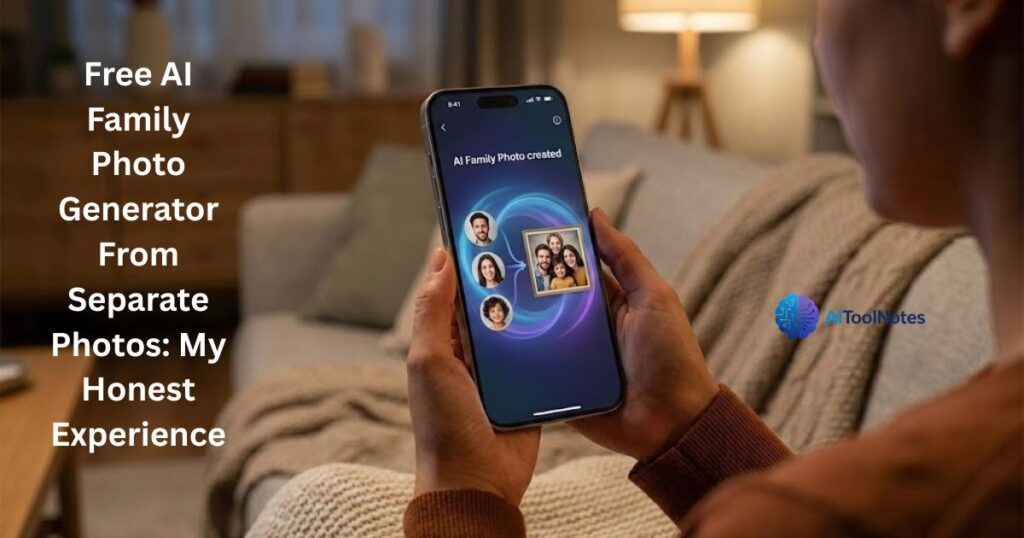
 Getting the whole family in one room in 2026 feels almost impossible. Between busy work schedules, travel, and everyday life getting in the way, my own family hasn’t managed to coordinate a proper group photo in years. Here at AI Tool Notes, my daily routine usually involves testing complex software, analyzing advanced generative models, and breaking down the latest tech trends. But recently, I needed something entirely different for a personal project: a simple, reliable way to stitch together a few separate selfies into a single, natural-looking family portrait.
I quickly realized that most people don’t want to spend hours masking layers in Photoshop just to get a nice picture for the living room wall. That’s why I decided to step away from the heavy workflows and cut straight through the tech jargon. I’ve personally tested and rounded up the best free AI photo generators available right now—tools that require zero design experience, won’t cost you a dime, and actually work for everyday people looking to bring their loved ones together in one seamless frame.
The Problem With Traditional Photo Editing
If you’ve ever tried manually combining family pictures using traditional software like Photoshop, you already know the struggle. Before the incredible AI boom we’re experiencing in 2026, merging photos meant spending hours watching confusing tutorials, meticulously masking out backgrounds pixel by pixel, and tweaking the lighting just so your dad didn’t look awkwardly copy-pasted into the scene. It’s incredibly frustrating and time-consuming. Let’s be honest: most of us don’t have a graphic design degree or hours of free time to learn advanced editing skills. We just want a quick, realistic result that we can proudly print out or drop into the family WhatsApp group, without the headache.
The Best Free AI Tools I Tested (So You Don’t Have To)
I spent this past weekend putting several of the top AI image generators to the ultimate test using my own family’s individual photos. I wanted to keep this experiment as simple and authentic as possible, ignoring the overly complex software I usually review here at AI Tool Notes. Here are my practical, actionable insights on the free platforms that actually deliver on their promises right now in 2026.
1. Fotor AI Image Generator
Fotor is easily one of the most beginner-friendly web platforms I’ve tested recently. When I uploaded three separate selfies of my family, I was genuinely surprised by how seamlessly it handled blending our different skin tones and adjusting the ambient lighting. You absolutely don’t need any technical skills or layers knowledge here—you just upload your shots, use their AI merge tools, and let the algorithm do the heavy lifting to make it look like you were all standing in the same room.
2. Photoleap (by Lightricks)
If you’re like me and often prefer doing quick edits while lounging on the couch with your phone, Photoleap is a fantastic mobile experience. It has dedicated features specifically built for mixing and blending images. During my tests, I found that its AI engine does a surprisingly brilliant job of recognizing individual faces and placing them naturally into a brand-new background scene. The best part? It didn’t look like my family was just awkwardly floating in mid-air—the AI actually generated realistic shadows for us.
3. Microsoft Copilot Designer (Formerly Bing Image Creator)
Powered by the incredibly smart DALL-E 3 model, this tool is 100% free, but it does require you to be a bit more hands-on with your text prompts. Because it’s heavily prompt-based, I found a great workaround: I used Canva to quickly place our separate solo photos side-by-side on a blank white canvas. Then, I fed that rough collage into Copilot with a prompt asking it to harmonize the faces into one realistic, candid shot. It takes an extra minute or two of effort, but the resulting sharpness is incredible.
Quick Comparison: Which Tool Wins?
| AI Tool | Ease of Use | Realism | Free Version? | Best For |
| Fotor | Super easy | 8/10 | Yes (Daily credits) | Complete beginners |
| Photoleap | Easy (App) | 8.5/10 | Yes (Basic features) | Mobile phone users |
| Copilot + Canva | Moderate | 9/10 | 100% Free | People who want high control |
Step-by-Step: How to Make Your AI Family Portrait
Ready to try it yourself? I promise it’s easier than it sounds. My whole mission here at AI Tool Notes is to strip away the complex tech jargon, so I’m going to break down the exact, simple process I used this weekend to get a portrait my wife actually loved enough to print and frame.
Step 1: Pick the right solo shots. This is honestly the most crucial step. Generative AI is incredibly smart in 2026, but it still needs good source material to work with. Dig through your camera roll and choose photos where your family members are facing forward. Avoid pictures with heavy shadows, sunglasses, or dramatic Instagram filters—clear, well-lit selfies or natural outdoor shots work the absolute best.
Step 2: Choose your AI tool. Pick the platform that fits your comfort level from the list I shared above. If you’re a complete beginner and just want a quick, painless experience, I highly recommend starting with Fotor. It handles the heavy lifting beautifully.
Step 3: Upload and arrange. Head into your chosen tool’s workspace and upload those separate images. Most of these modern platforms have simple drag-and-drop interfaces now, letting you place the faces roughly where you want them to stand or sit in the final picture.
Step 4: Write a simple prompt. If the tool asks you for a text description of the scene, keep it completely natural. You don’t need to learn complex AI prompt engineering! Feel free to copy and paste my exact, tested template: “A highly realistic, candid family portrait of these people sitting in a sunlit garden, 4k photography.”
Step 5: Generate and refine. Hit that generate button! Now, here is the golden rule of AI image generation: don’t be discouraged if the very first try isn’t flawless. It usually takes a few tries for the algorithm to perfectly match everyone’s lighting and body proportions. If someone looks a bit out of place, just hit “regenerate” and let the AI try again until you capture the perfect shot.
My Pro Tips for Avoiding “AI Glitches”
As much as I praise these tools here on AI Tool Notes, even the most advanced generative AI in 2026 still has a bit of a quirky sense of humor. During my initial tests this weekend, one generator decided my brother needed three arms, and another somehow morphed my coffee mug into a disembodied hand floating in the background. It’s the classic AI weirdness we’ve all come to expect!
Let me save you some laughs (and mild horror) with a few simple, actionable tricks I use to get a flawless image:
- Keep the background prompt incredibly simple. Don’t ask the AI to generate a complex, crowded city street or a detailed festival scene behind your family. Stick to clean, simple environments like a “sunlit park bench” or a “cozy living room.” Less background noise means the AI can focus its processing power on perfecting your faces.
- Watch out for harsh lighting. Make sure none of your original solo photos have heavy, dramatic shadows across the faces. The AI algorithm struggles to balance a brightly lit outdoor selfie with one taken in a dark room, which often results in patchy, mismatched skin tones in the final picture.
- Trust the “Regenerate” button. If the first result looks a little creepy, don’t panic or give up! Just hit regenerate. These modern AI models are designed to iterate, and I usually find that the second or third try automatically fixes those weird hand glitches and awkward postures.
Final Thoughts: Making AI Practical
So, here is the big question: Can an AI image generator truly replace the genuine memories and connection of a real, professional family photoshoot? No, definitely not. There is no replacing the real thing. But when distance, opposite work shifts, and tight budgets keep your loved ones apart, it is an amazing, practical alternative to finally get everyone in the same frame for the holidays. That’s exactly what my mission is with AI Tool Notes—cutting through the hype and making this incredible technology work for you in everyday life.
Have you tried any of these tools to stitch your family photos together yet? Did you get a masterpiece or a hilarious AI glitch? Drop your experience in the comments below!