Gourav
 Today, I’m going to show you how to use Perplexity AI and explain why this Google search alternative deserves a spot in your AI toolkit. By the end of this video, you’ll know how to get reliable answers quickly for your everyday questions, customize your searches to focus on academic papers or social media, and understand when Perplexity works better than ChatGPT—and when it doesn’t.
To access Perplexity, click the card at the top or use the link in the description below. Let’s dive in.
Here we are on the Perplexity homepage. It’s clean and simple, looking pretty similar to other AI tools you’ve probably seen. In the center of the screen, you’ll find the prompt box—this is where you type in any question you want answered.
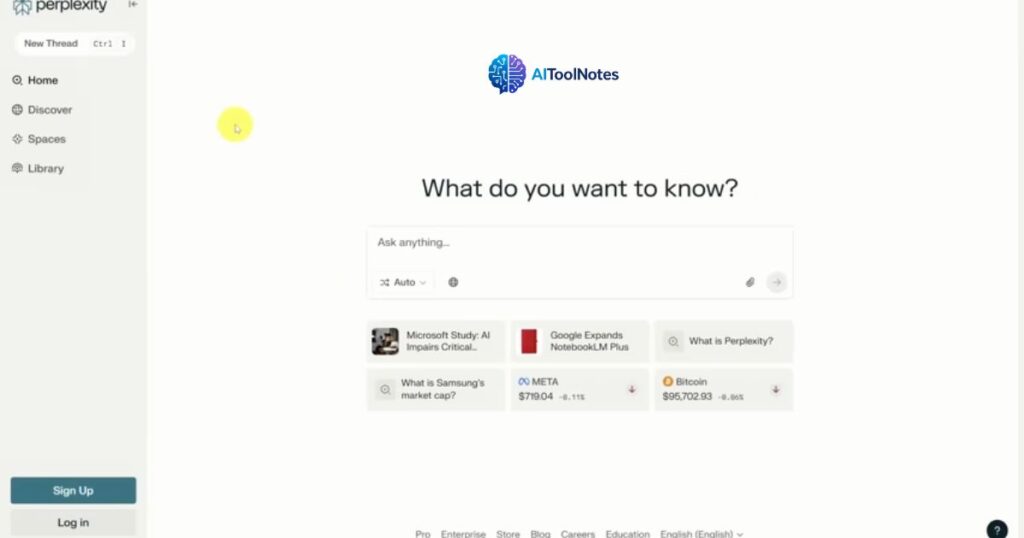
Below the prompt box, Perplexity gives you some starter ideas—like more details on recent headlines, sample questions, and current prices for stocks and crypto.
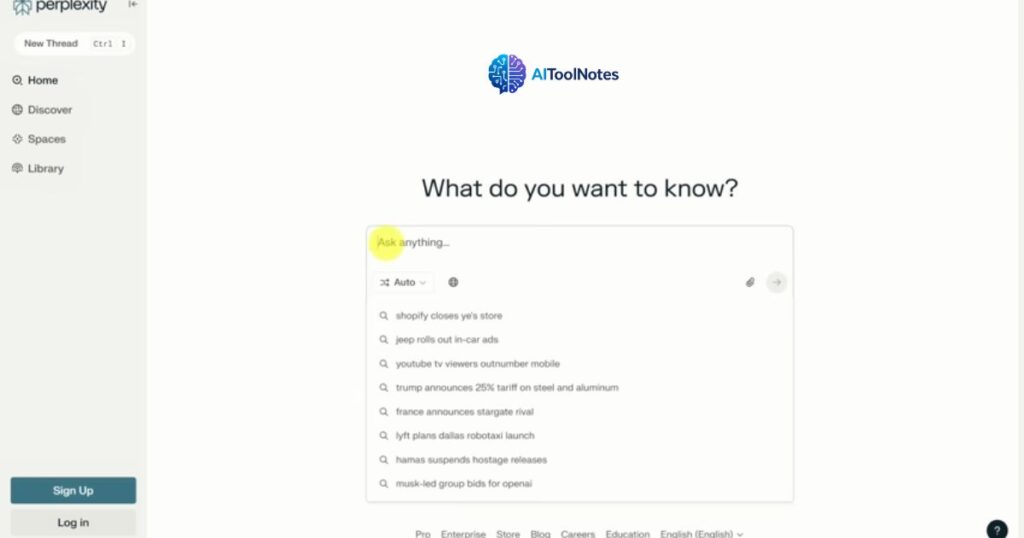
When I click inside the prompt box, I see a bunch of recent headlines I can explore further. But we’re not really interested in those right now.
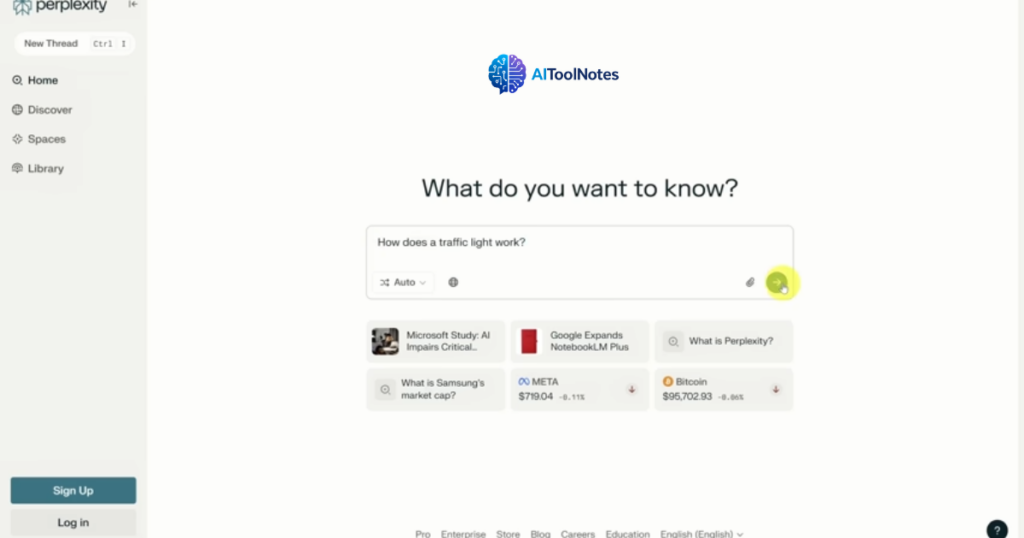
One of the main reasons you’d use Perplexity over other AI tools is when you want extra confidence that it’s not just making things up. Let’s see that in action. I want to know how a traffic light works.
Once you type in your question, just press Enter or click the arrow in the bottom right corner of the prompt box to submit it.
You’ll notice the answer comes back pretty quickly. So let’s walk through it step by step.
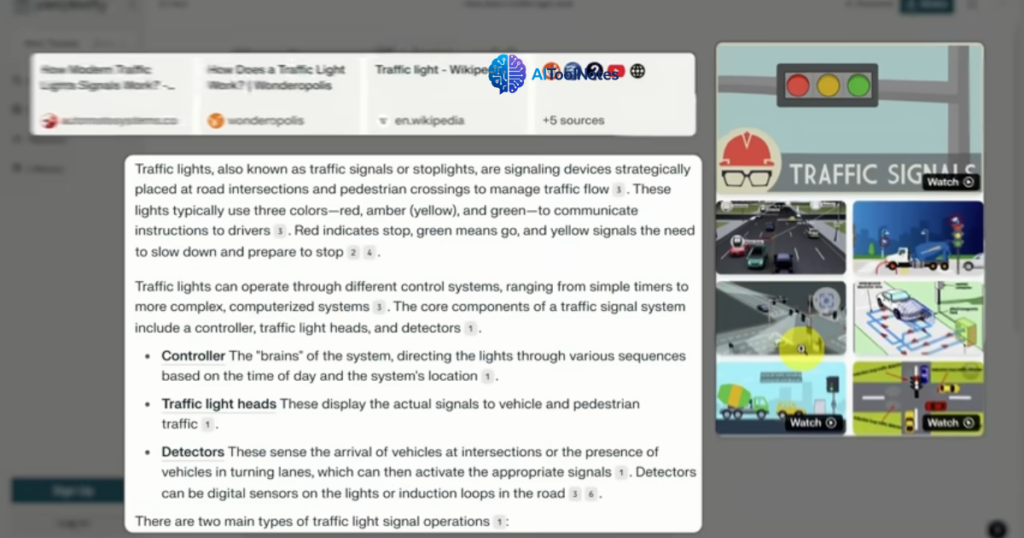
Here we see three panels of information. The bottom left panel contains the core answer.
The panel on the right shows images and videos you can watch about the topic. And in the top left panel, Perplexity lists its sources.
You’ll notice that throughout the answer, Perplexity cites its sources as well. A citation appears as a small number inside a gray rounded box. You can click on any of these to jump straight to the original source.
Now, if you’re paying attention, you might be wondering—why don’t we just use Google?
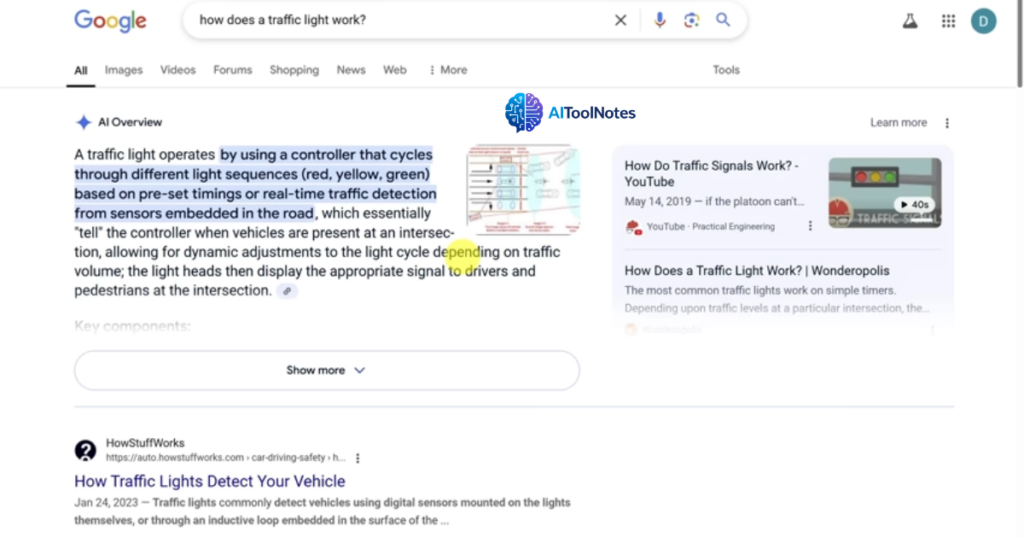
In fact, if you ask Google the same thing, do you know what you get? Well, you get an AI overview at the top of your search results. And look at this—you’ve got the core answer on the left and a list of sources on the right. This answer looks pretty similar to what Perplexity gives.
So what’s the deal? Why use Perplexity?
One simple answer is that not all Google search results have an AI overview.
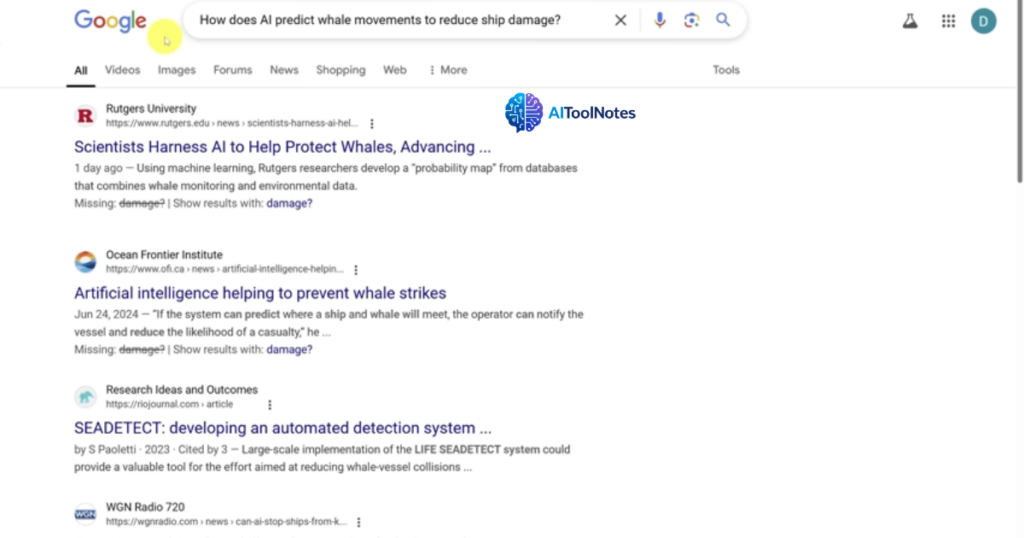
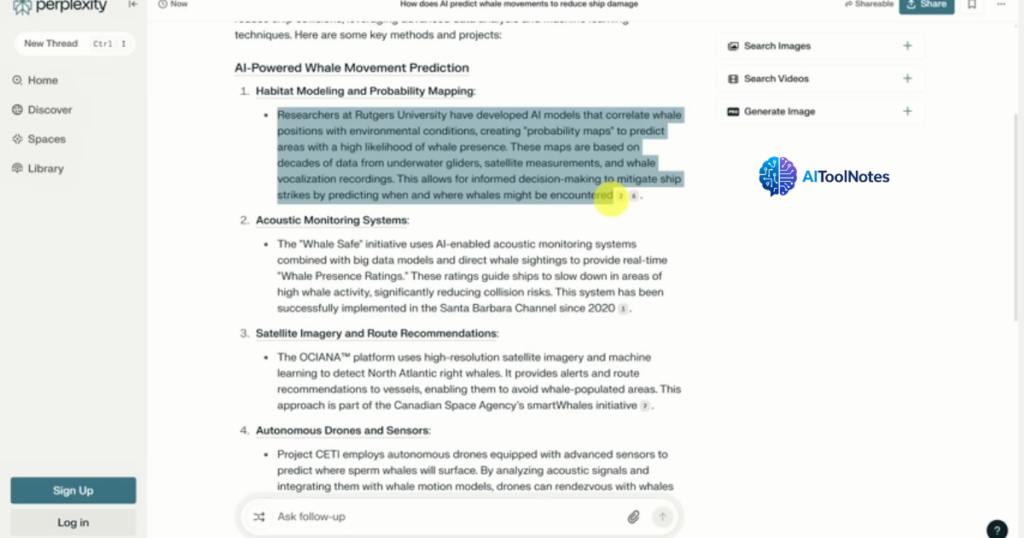
For example, if I ask about something relatively recent, like “How does AI predict whale movements to reduce ship damage?”—Google just shows me a list of recent articles on the topic.
But if we go back to Perplexity, we can start a new prompt (or what Perplexity calls a “thread”) by clicking the button in the top left of the screen.
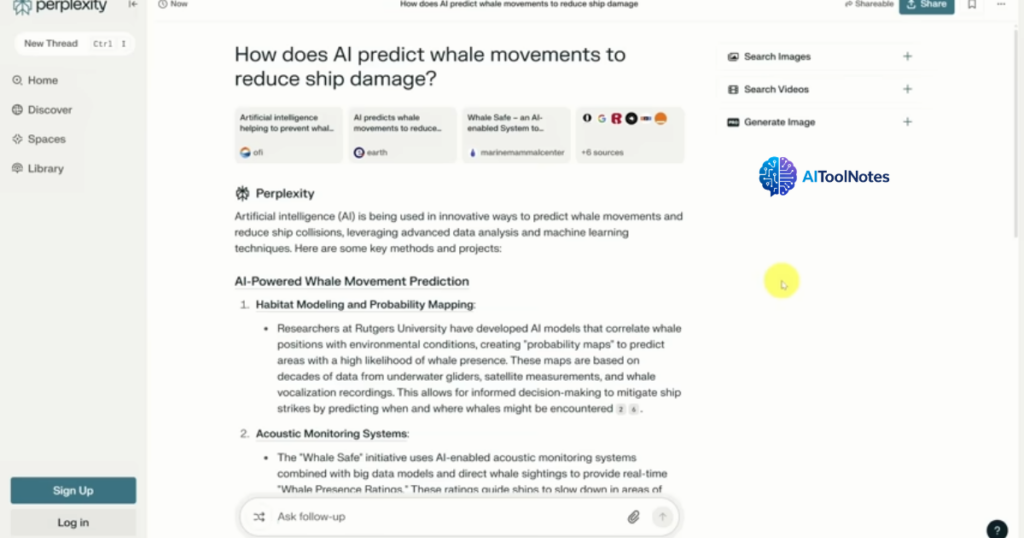
We can ask the same question, submit it just like before, and get the same style of answer we’ve come to expect.
Notice that this has already summarized the recent article that Google found in its first search result.
Okay, so that’s interesting, but maybe not enough to make Perplexity part of your daily routine. Let me show you a way to really use it to its full potential.
I’m going to start a new thread, this time using the Control + I shortcut on Windows or Command + K on a Mac.
This time, I have a more serious question, and I don’t want information from just any random article someone posted online. I’m looking for information from actual research.
In my opinion, this is where Perplexity really shines. To filter your search, click on the web icon in the bottom left of the prompt box. This lets you toggle between three different types of sources for your search.
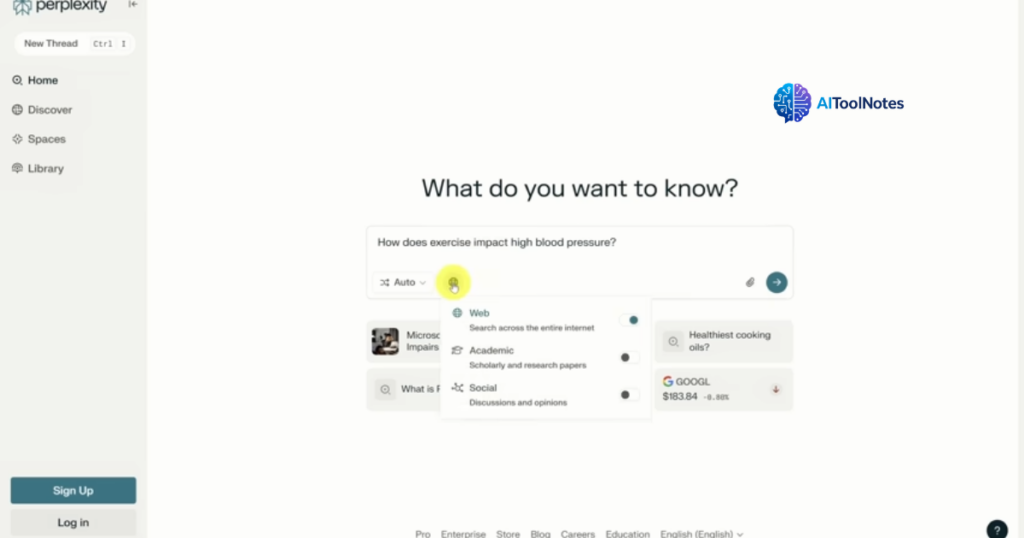
Now, we’ve already done some web searching, but since we want to look at research only, let’s turn on the Academic switch and turn off the Web switch.
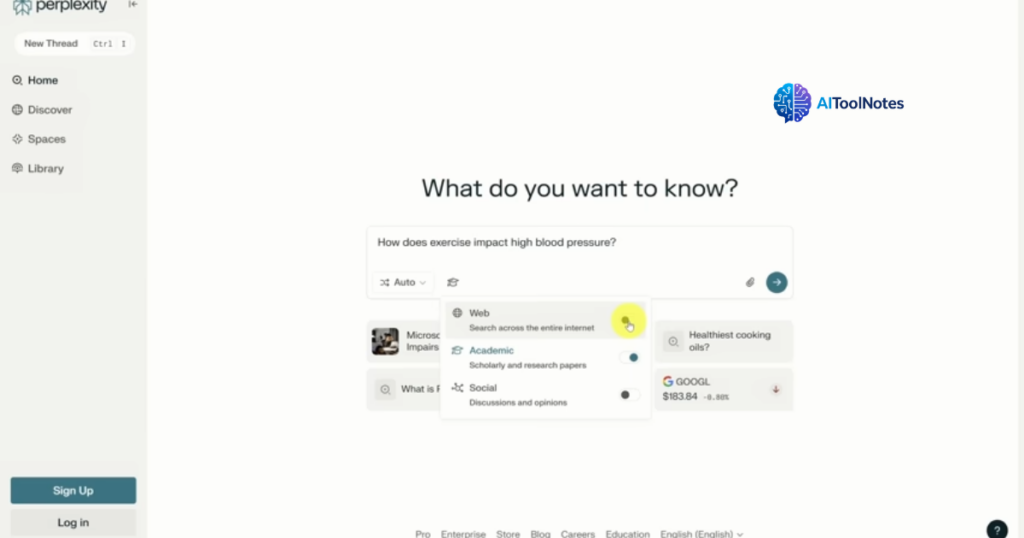
From here, you know the drill. Click the green arrow to submit your prompt. Just like before, the bottom left shows your core answer, and the top left has your list of sources.
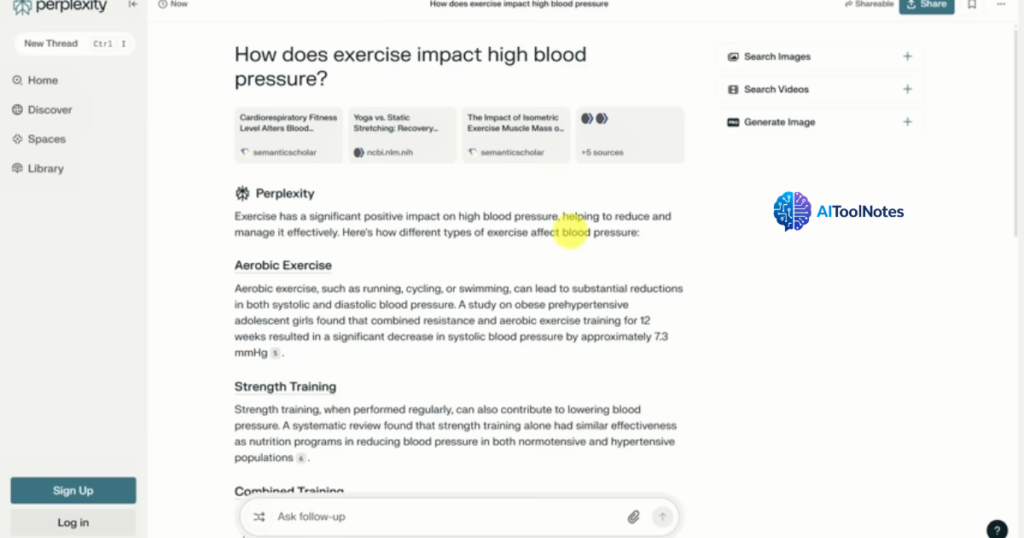
This time, your sources are all from published scientific papers.
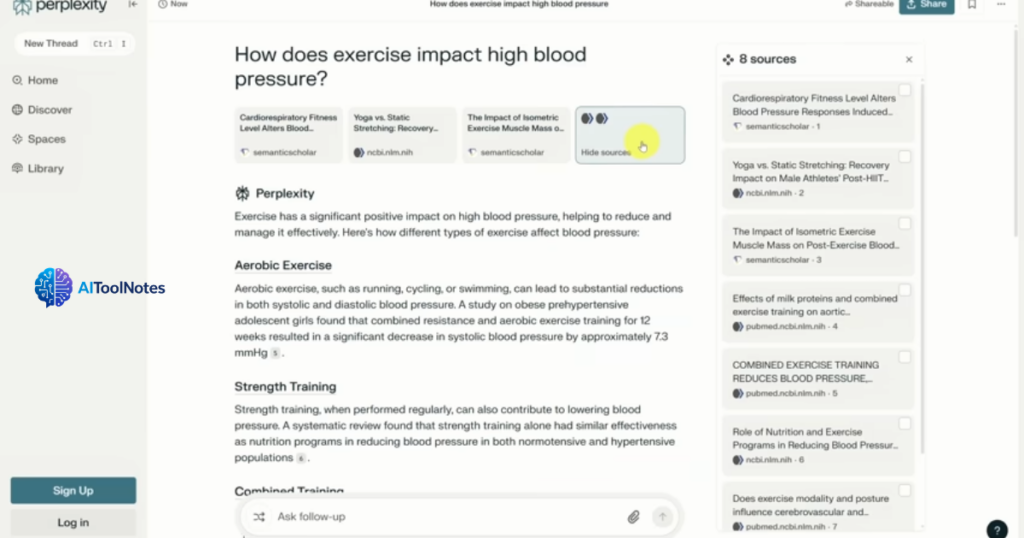
and you can see this by clicking on the plus five sources button at the end of this row. Now, here, you can click on any source to browse the original paper, and if you find there’s a source that you don’t like, then you can remove it and rerun the prompt.
To do this, check the box at the top right of any source, then click the remove source button that appears at the bottom of the sources list.
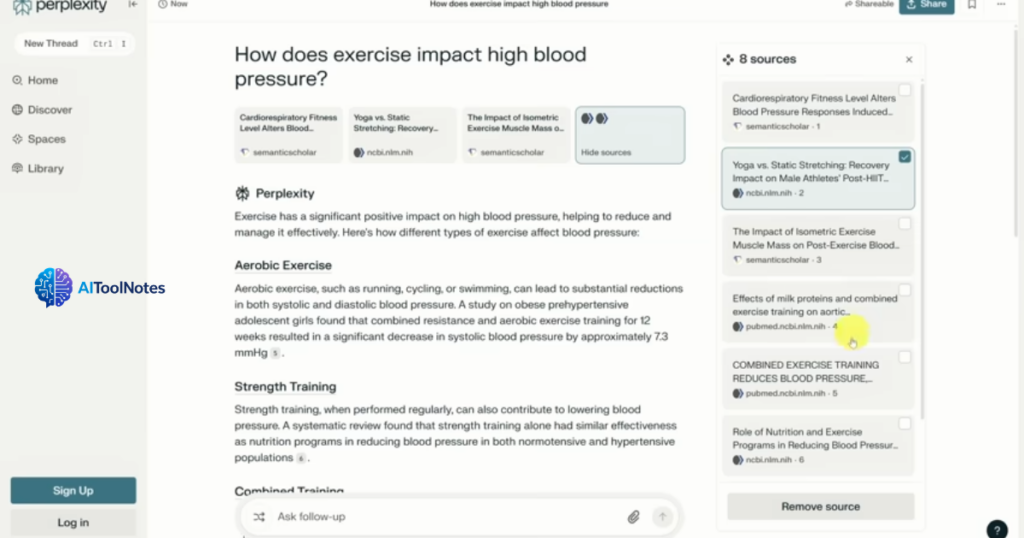
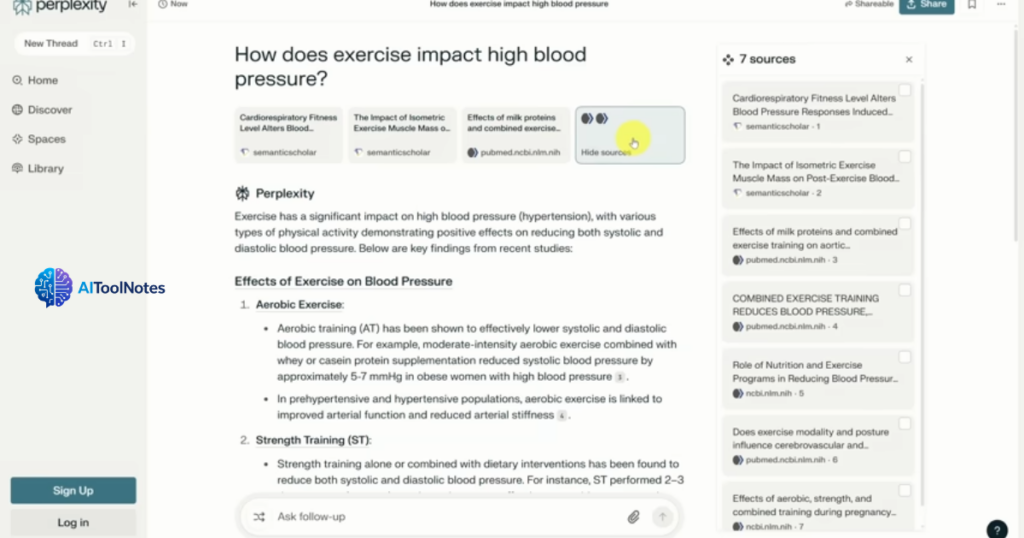
This reruns the prompt, and notice that this time we only have four additional sources instead of the original five.
Now, there’s one other source we haven’t looked at yet. Let’s check that out right now. I’m going to create a new thread.
Next, I’ll click on the Academic icon to show the other search sources. Instead of Academic this time, let’s select Social. At the time of filming, Social basically means searching Reddit.
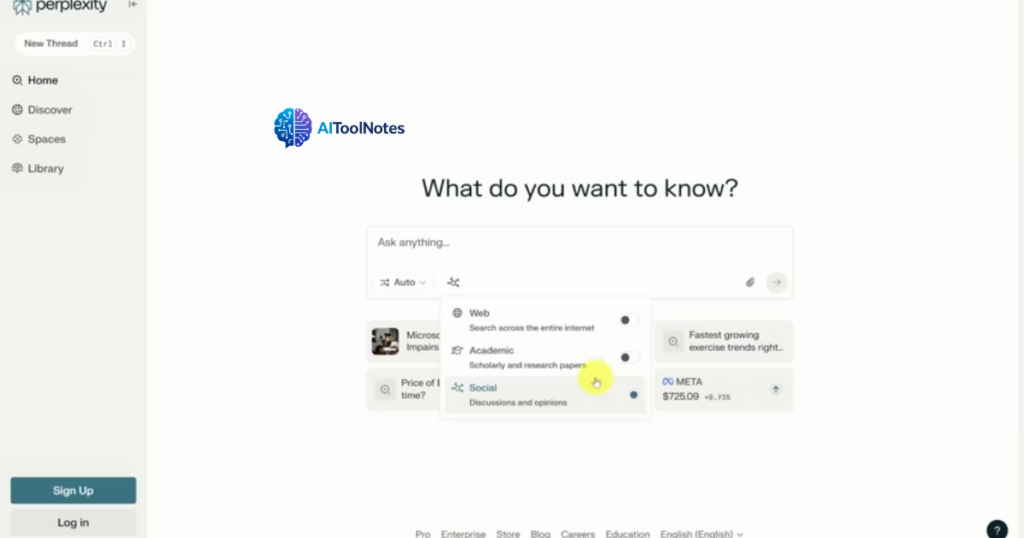
Sometimes we want the wisdom of the crowd, especially when we’ve been unsuccessful on our own. So here’s my next question for Perplexity: “How can I get started making a budget? Everything I’ve tried so far has failed.”
Let’s see what the wisdom of Reddit has to offer.
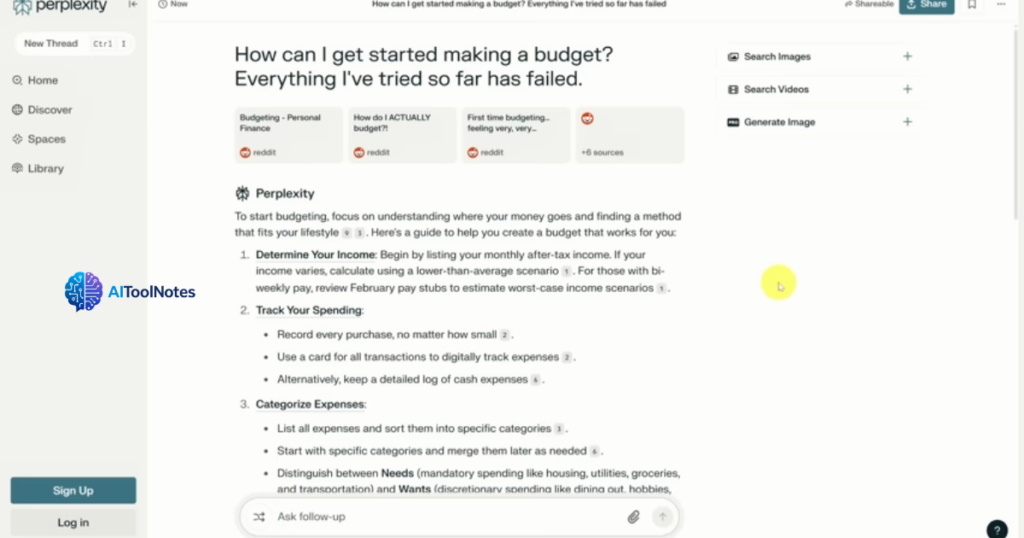
Once again, you see our answer in the bottom left. This time, it’s taken nine different Reddit threads and condensed them down into a couple of paragraphs—and those paragraphs form a step-by-step guide. I can follow these steps one at a time, and if I get stuck, I can refer back to the original thread where it was discussed.
Now that you’ve gotten some comprehensive answers from Perplexity, you might want to share those with a friend. To share the result of any prompt, click the Share button at the top right of the screen. This copies a link you can share. You can also make threads private, but only if you sign up for an account.
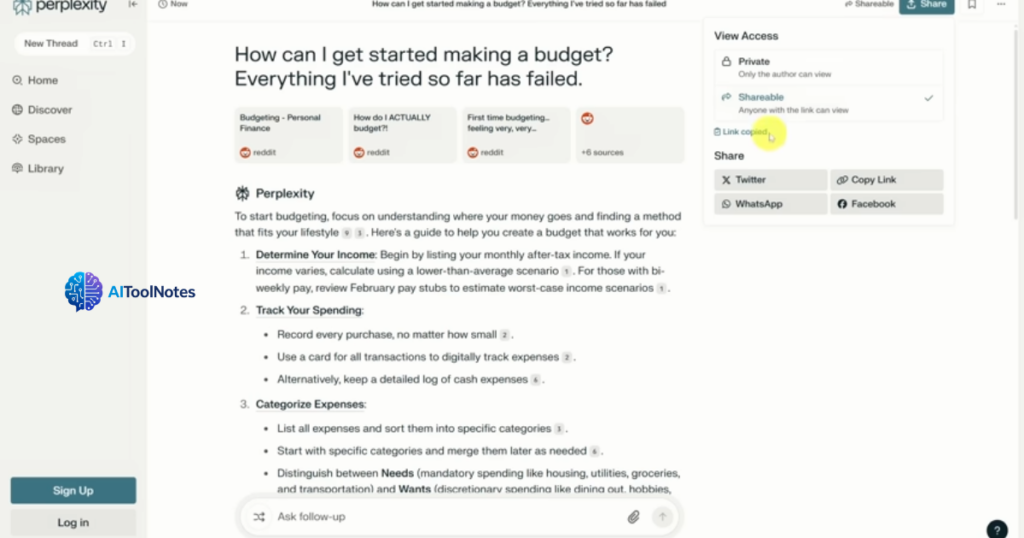
Now you may have noticed that every time we created a new thread, the old thread disappeared. To make your threads private or even save any of your threads, you need to sign up for an account by clicking the Sign Up button in the bottom left.
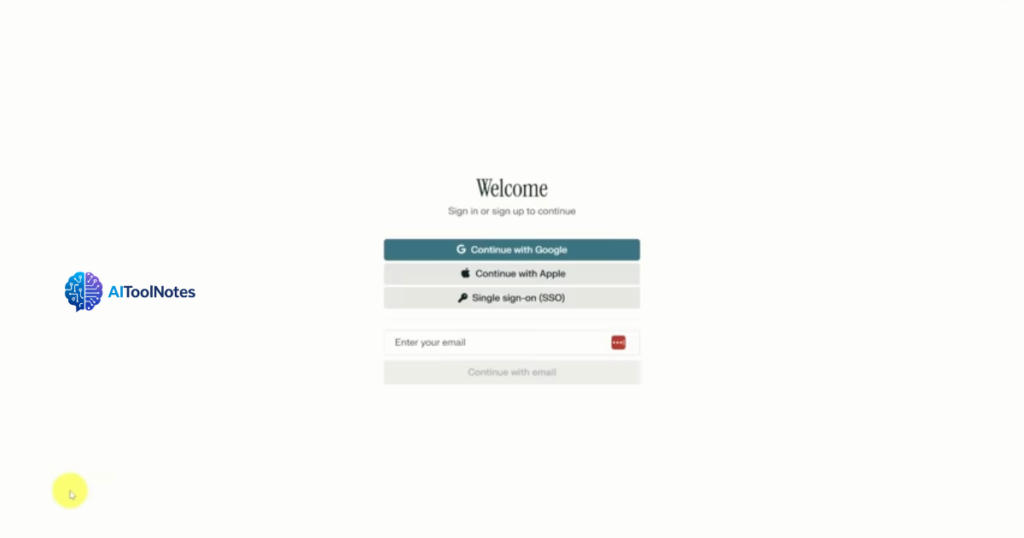
I’m going to show you how to optimize your experience once you have an account, so go ahead and sign up to continue.
Now that you’re signed in, all of your new queries will be saved in the Library, but that’s not everything you get with an account.
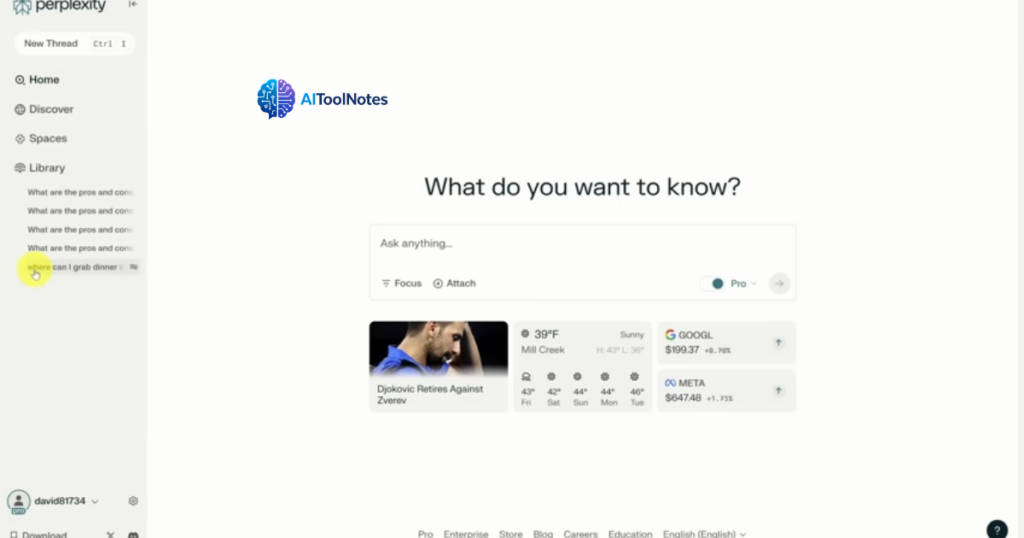
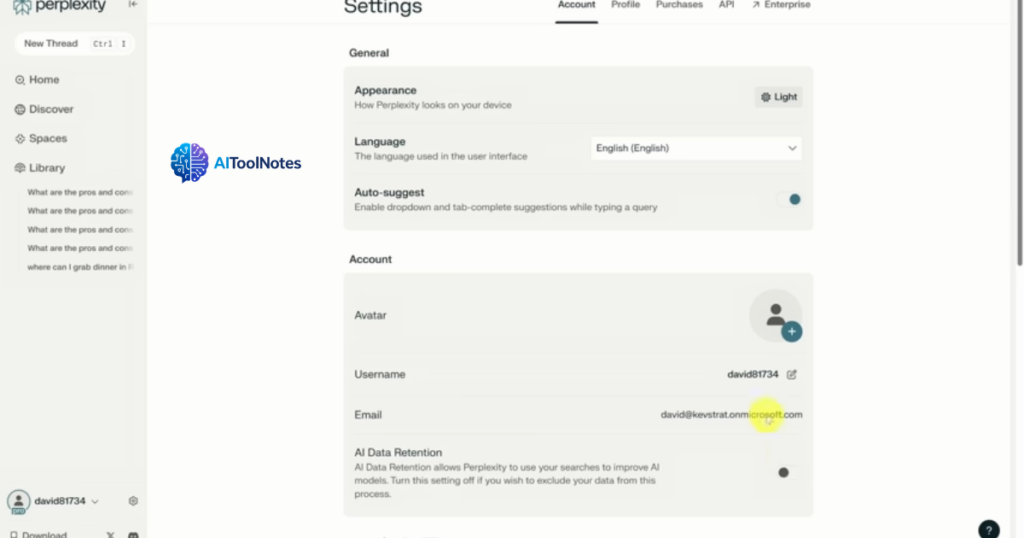
Click on the gear icon in the bottom left to access your settings. Here are a couple of things you might be interested in. Use the Appearance setting to switch to dark mode if you want, then take a look at the AI Data Retention setting below.
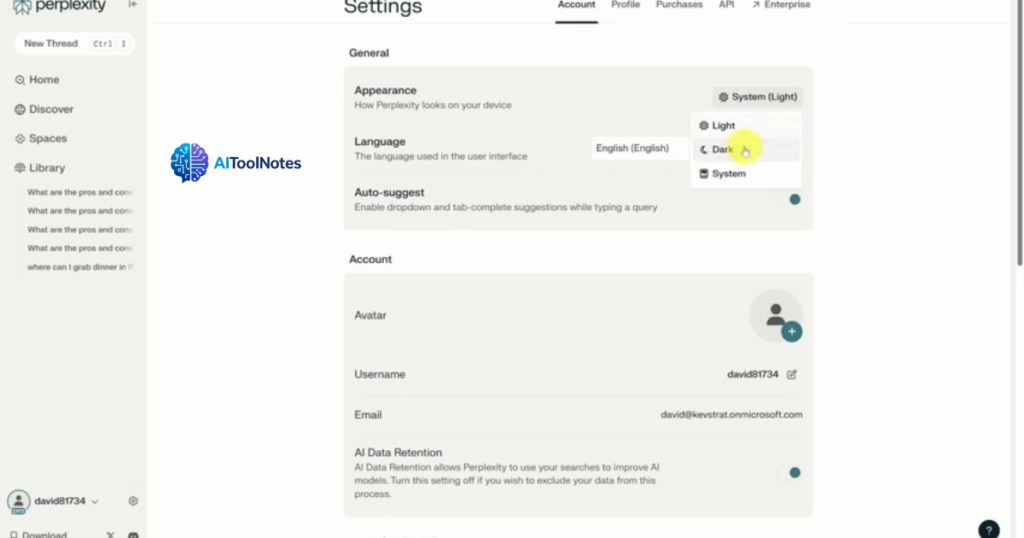
Uncheck this if you don’t want Perplexity to train its models with your data.
Next, click on the Profile tab. On this tab, you can introduce yourself—which really just means providing custom instructions to the AI for every thread you start.
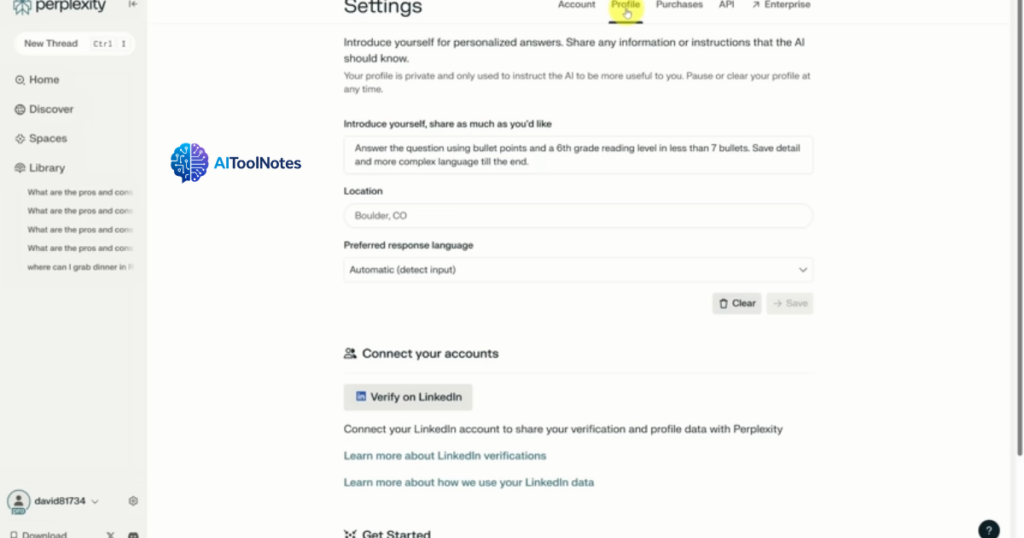
Here, I’m telling Perplexity to get to the point—no long-winded explanations, just simple bullet points. Now, unfortunately, in my testing, it seemed to take several hours before the AI would actually update based on the instructions you provide here. But let me show you an example of how this works.
I’ll ask a simple question: “Why are there seven colors in the rainbow?” And then click Submit.
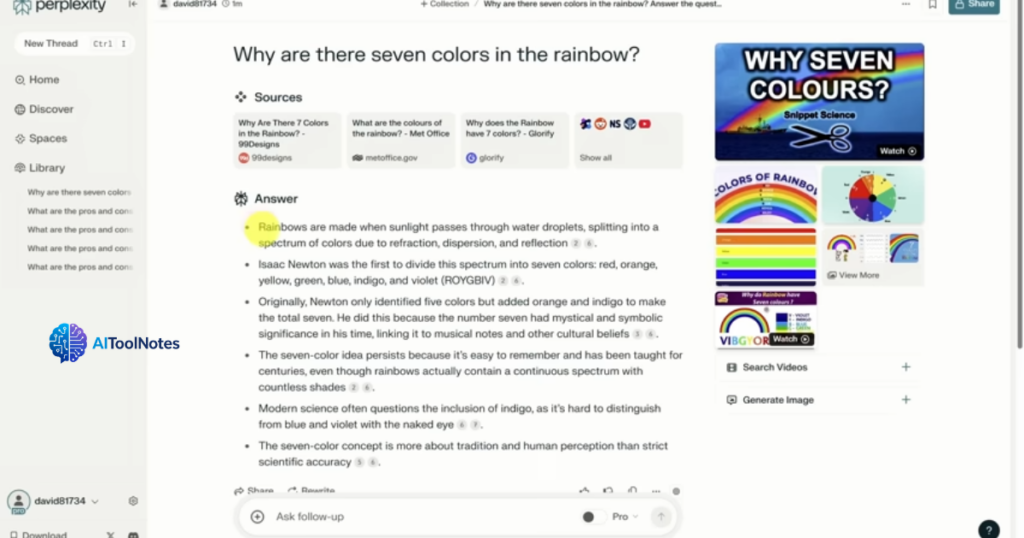
And now the response still provides some backstory, but it gets to the answer quickly.
Now let’s talk about Spaces. Spaces are like little rooms in your Library where every thread you start is governed by the same custom instructions. This saves you from having to repeat yourself over and over.
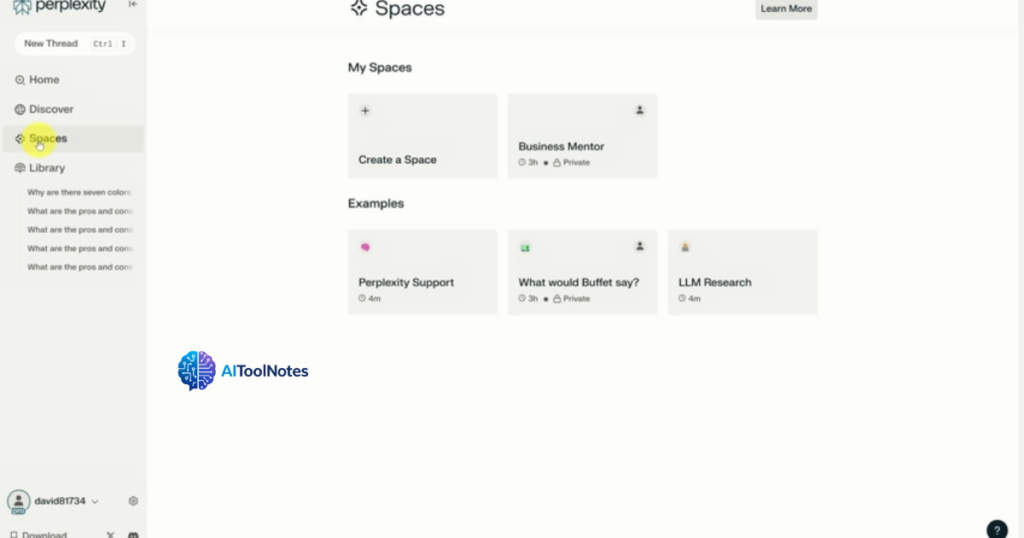
Let’s create a Space together by clicking on the Create a Space button. We’ll call this Space “Business Mentor.”
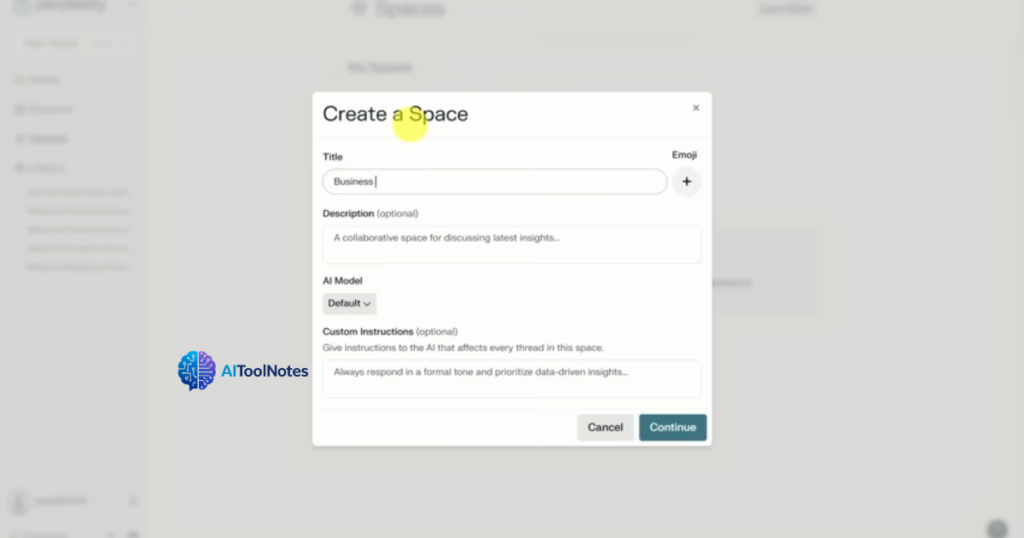
I’ve got some business mentor instructions that I pulled from earlier. The key here is not to sugarcoat advice. Before we click Continue, let’s add an emoji. I’m going to look for the tie.
Here we go, this works great. Then we’ll click Continue.
Before we ask our business mentor a question, let me draw your attention to the Sources tab. You can add files and links to this Space to help inform the answers you get back.
Now, you can add links on any plan, but if you want to add files, you need to be on the Pro plan. And even on the Pro plan, there are limits to the file sizes.
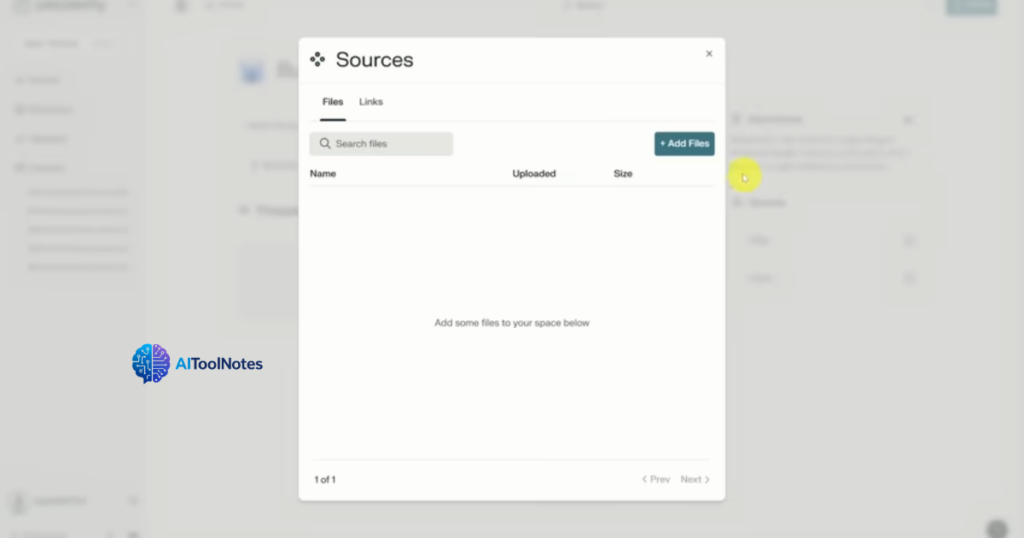
You can only have up to five files, and they must be less than 25 MB each. Now that we’ve added our files, let’s ask our business mentor a question. Here’s a question about business strategy:
“We’re struggling to find our niche. How do we get there?”
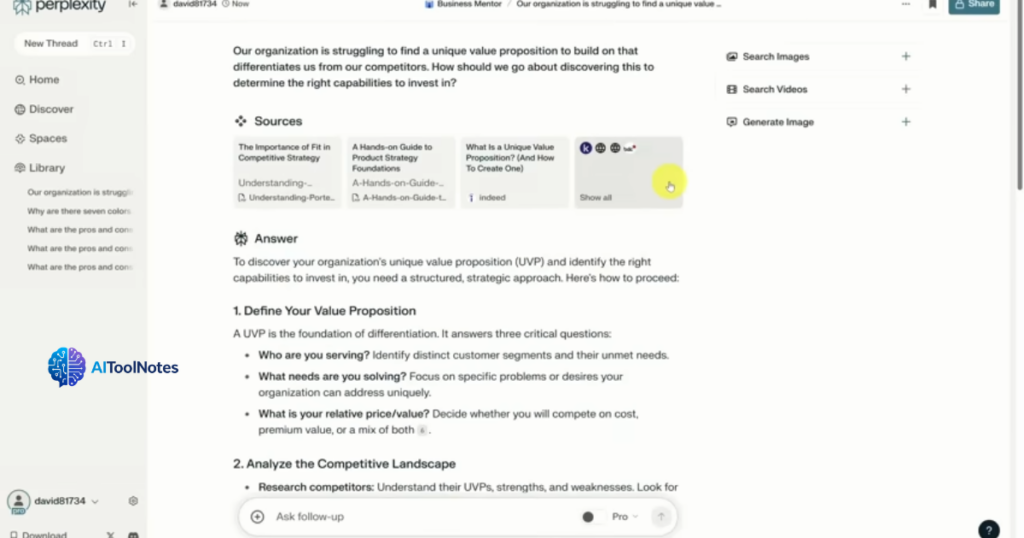
Once the answer comes back, you’ll see the sources are a combination of the files we uploaded as well as information from online. Each of those sources is linked independently in this cohesive result. You can see references 1 and 2 are to the files.
Now, you may have noticed this Pro switch. When you turn this on, it gives you access to three times the sources to maximize the precision and relevance of the answer you receive.
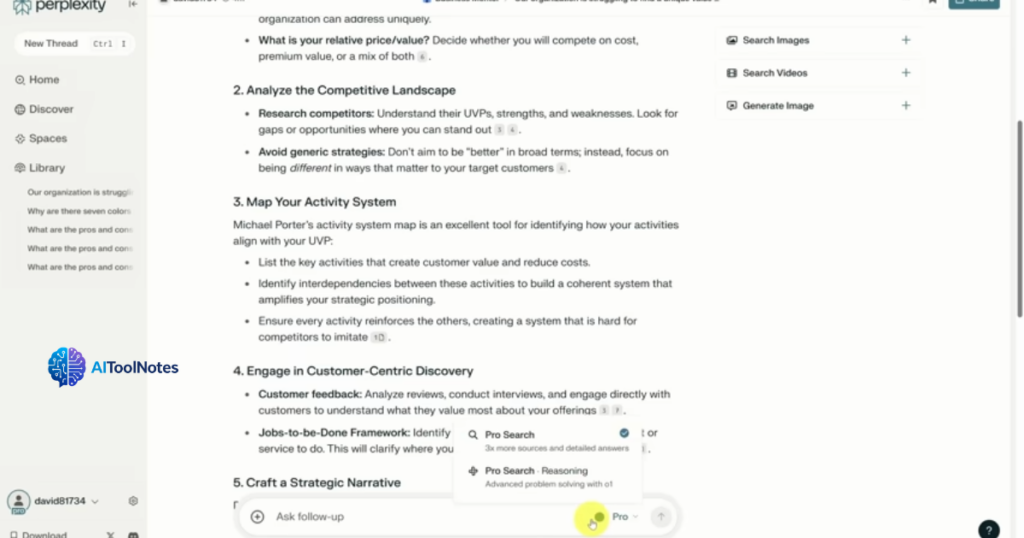
So let’s ask the same question with a Pro search this time. And by the way, I’m going to start a new thread so we start with fresh context.
This time, Perplexity used 18 sources, and the answer has more citations for each of its points.
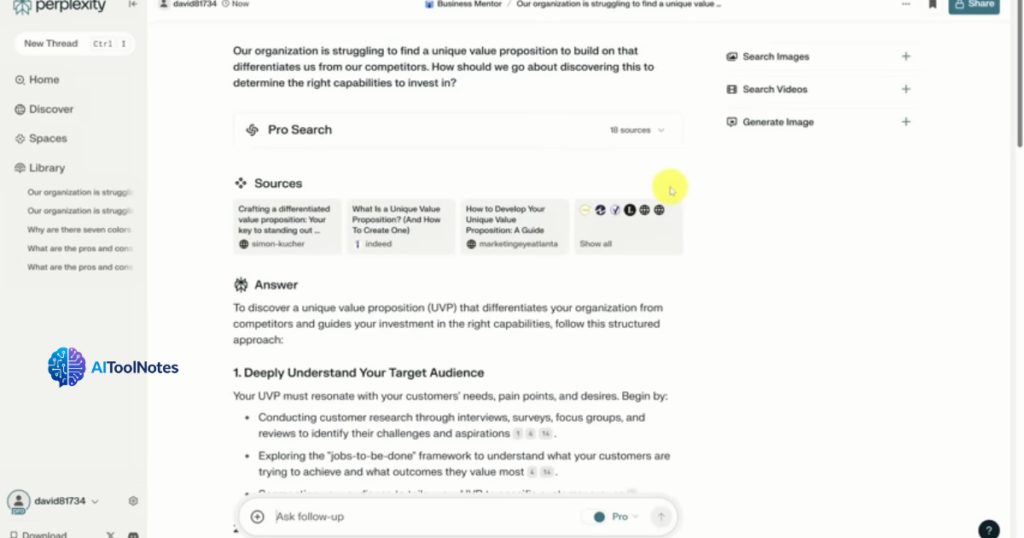
As a free user, you get three Pro searches per day. And as a Pro user, you get at least 300. There’s one more component of Pro that’s kind of interesting. If you go back to the Settings page and this time scroll down to the Perplexity Pro section, you can modify the underlying AI model that Perplexity uses.
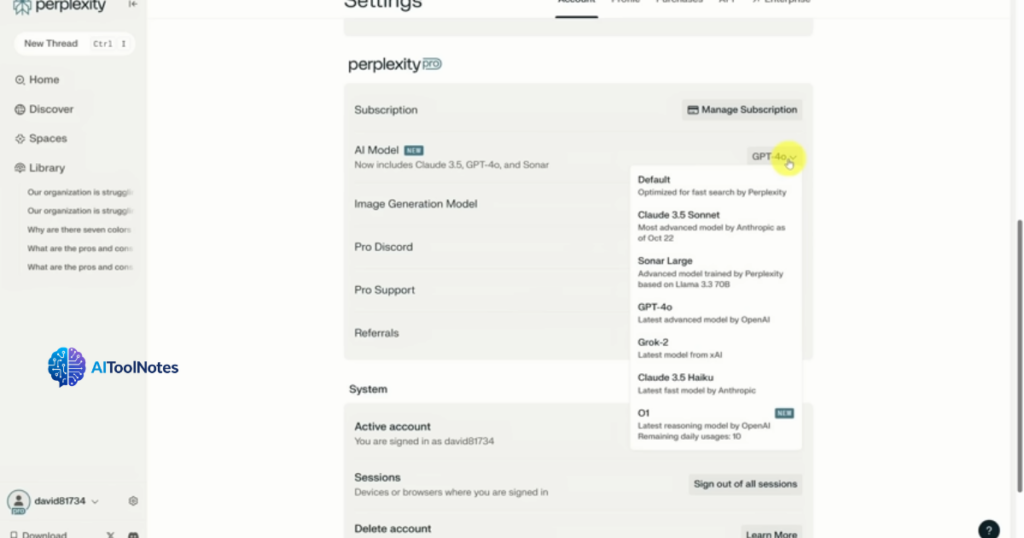
There are several different models to choose from, and the best one will depend on your scenario. My advice? If you’re not getting satisfactory responses with one model, try another. But don’t make the mistake of thinking you can just pay for Perplexity Pro and get access to all these other services for free. That’s because on top of all these models, Perplexity is applying its own search-first rigor.
Put another way, if you use GPT-4o here, you’re still going to get a different response in Perplexity than you would in ChatGPT.
And for this last part of the tutorial, we’re actually going to put that to the test. We’ll pull up one last query in Perplexity and then put ChatGPT side by side.
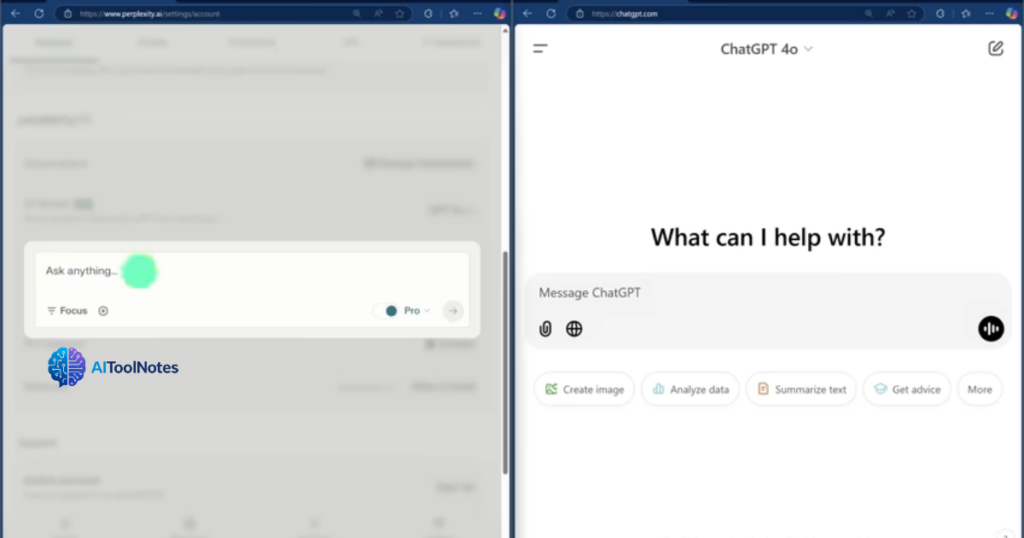
We’ll ask both of them where we can grab dinner in Rome on a Friday night. And for ChatGPT, I’m going to specifically turn on the search feature to make sure it searches the web. Okay, off we go.
So you get recommendations from both, but notice they’re slightly different between the two.
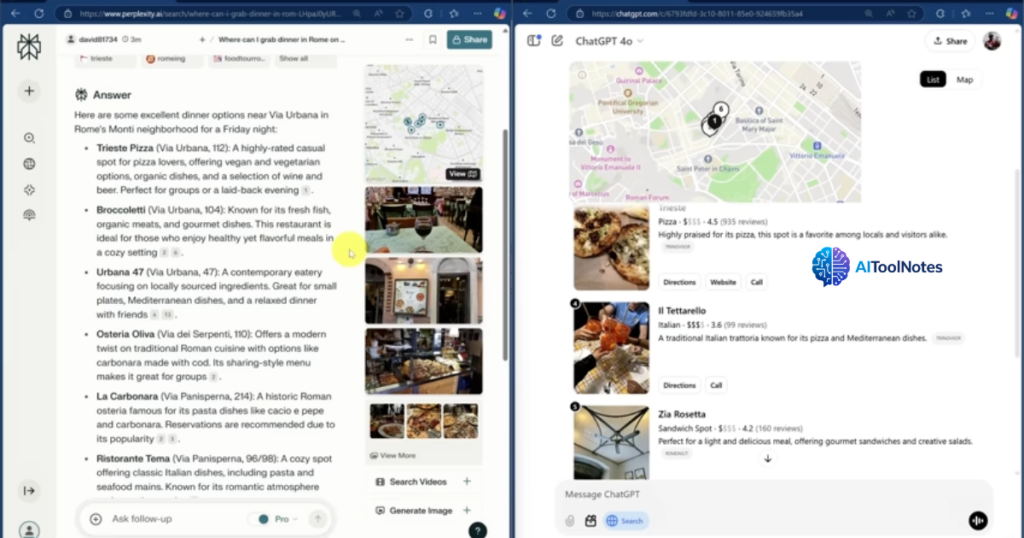
Now, you might prefer the Perplexity experience here, or you might prefer the ChatGPT experience. But one thing’s for certain—Perplexity outpaces ChatGPT when it comes to citations.
For example, here’s a research query I’ve asked both ChatGPT and Perplexity. Perplexity just nailed it. It got all five tests I was looking for, as well as good sources for each of them.
ChatGPT, on the other hand, didn’t do so well. It only got one of the five tests correct, but look at how confidently it’s presenting this as the right answer. And when I pressed it on what its source was, only then did it revise its answer.
Now, if you’re astute, you may have noticed that I didn’t have ChatGPT search turned on. And to be fair to ChatGPT, when it’s on, it does get the correct answer.
But I made an honest mistake in forgetting to turn it on. Would you risk wasting your time knowing you could make the same mistake?
Overall, Perplexity for me is about reliability, while ChatGPT and others are for creativity. So I won’t be asking Perplexity to write my emails anytime soon.
Finally, a tool that makes you feel smart, not perplexed. I’m Gourav, and I’ll see you in the next video.