Gourav
 Introduction
If you’ve been scrolling through social media lately, you’ve probably heard the rumors: “Music production is changed forever,” or “AI can now write full songs in seconds.”
While those headlines are often exaggerated, one tool is making them feel uncomfortably close to reality: Udio.com.
When it first launched, Udio felt like magic. You could type a simple prompt like “an 80s pop song about a cat eating pizza,” and within seconds, it would spit out a fully produced track with lyrics, harmonies, and a catchy chorus. But now that the initial hype has settled, the real question remains: Is Udio actually a useful tool for creators, or is it just a fun toy for five minutes?

Whether you’re a YouTuber looking for background music, a songwriter needing inspiration, or just someone who wants to hear a country ballad about their morning coffee, this tool promises to do it all. But with a specific credit system and strict rules on commercial rights, there are some important “catches” you need to know before you start.
In this review, I’m going to break down exactly how Udio works, the hidden limits of the Free Plan, and the honest truth about whether the music is actually good enough to use.
Let’s dive in.
Inside the Dashboard: First Impressions
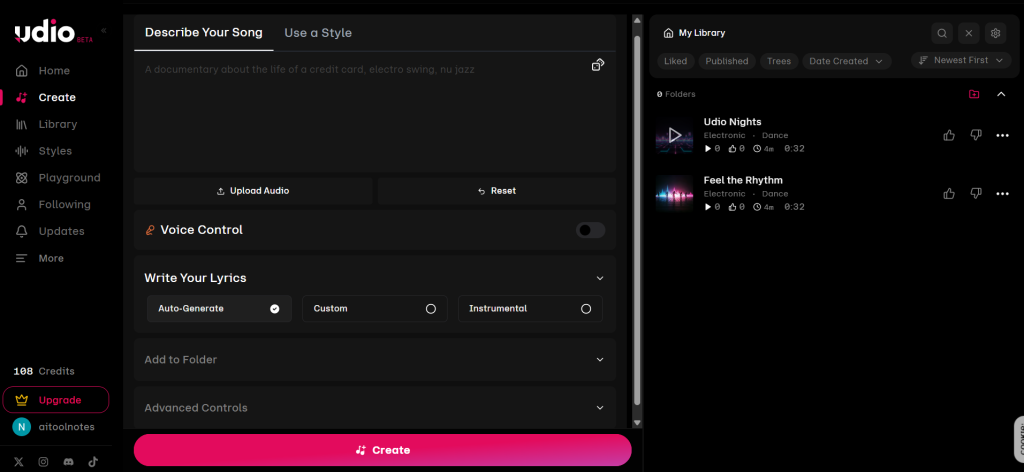
The “Studio” Interface (Visual Analysis)
As soon as you log into Udio, the first thing that hits you is the design language. Unlike many AI tools that feel like cluttered coding terminals or chaotic chatbots, Udio feels surprisingly polished. It reminds me of a cross between Spotify and a modern video editor—sleek, dark, and intuitive.
The interface is divided into a logical “three-column layout” that makes navigation effortless:
The Creative Center
The middle of the screen is dedicated entirely to your current project. It’s not crowded with buttons; just a clean input box waiting for your ideas.
The “Dark Mode” Aesthetic
The default dark theme isn’t just for style; it’s easy on the eyes for long creative sessions. It gives off a professional “studio vibe” rather than a corporate software feel.
The “Library” Sidebar
On the right-hand side, you have instant access to your history. As you can see in my dashboard, tracks like “Udio Nights” and “Feel the Rhythm” are automatically saved and organized here. This is a huge feature because it means you don’t have to manually download every single test track; the system acts as your cloud storage, keeping your failed experiments and your hits neatly sorted by date.
In short, it doesn’t look like a tool you need a manual to learn. It looks like a music player that you just happen to control.
Choosing Your Workflow (Text vs. Style)
One of the best features I noticed is that Udio doesn’t force you to just “type and pray.” As you can see in the screenshots, there are two distinct tabs at the top of the dashboard: “Describe Your Song” and “Use a Style.”
Here’s the difference between them:
The “Describe Your Song” Tab (For Writers)
This is the default mode, and it’s designed for total control.
The Text Input
As shown in the image, you have a blank box to type a descriptive prompt (e.g., “A cyberpunk jazz track”).
The Fine Tuning
This mode unlocks the granular controls. You can see the “Voice Control” toggle (to adjust vocals) and the “Write Your Lyrics” section.
Best For
When you have specific lyrics or a very specific genre mashup in mind.
The “Use a Style” Tab (For Vibes & Remixes)
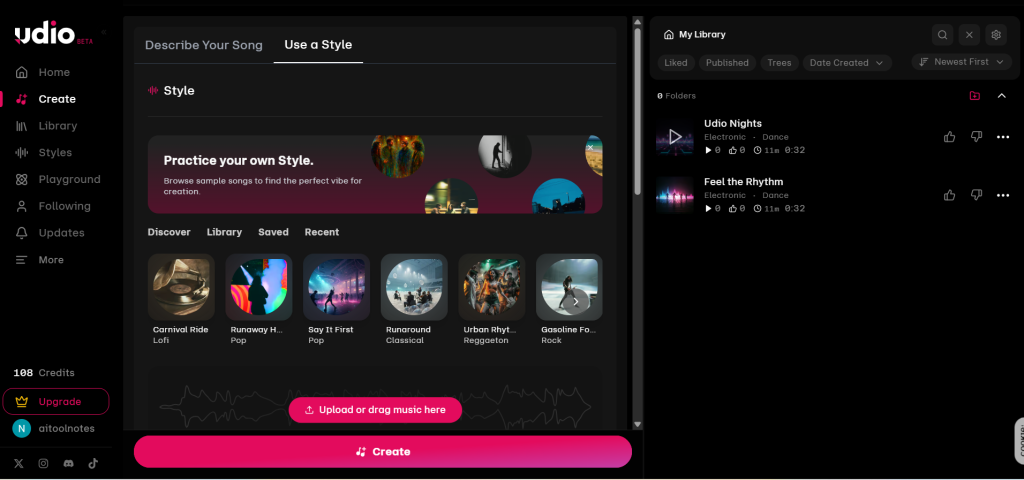
When I clicked the second tab, the interface completely transformed. Instead of a text box, it became a visual gallery.
Preset Vibes
Instead of guessing genre names, you can click on visual cards. In my dashboard, I saw presets like “Carnival Ride” (Lofi), “Runaway” (Pop), and “Urban Rhythm” (Reggaeton).
Audio Referencing
The most powerful feature here is at the very bottom: a pink button that says “Upload or drag music here.” This suggests you can upload a reference track and have the AI mimic its style or structure, rather than starting from scratch.
Best For
When you don’t know the technical music terms but you know the “vibe” you want, or when you want to remix an existing sound.
The Creation Test (My First Song)
To see if Udio is actually “intelligent” or just pasting random sounds together, I decided to give it a creative challenge. I didn’t want a generic beat; I wanted to test if it could understand a weird, specific story.
The Prompt Strategy
I used the “Describe Your Song” tab because I wanted full control. My goal was to test three things at once:
- Genre Blending: Can it mix “80s nostalgia” with modern pop?
- Lyrical Context: Can it write coherent lyrics about a specific topic?
- Speed: How fast does it actually render?
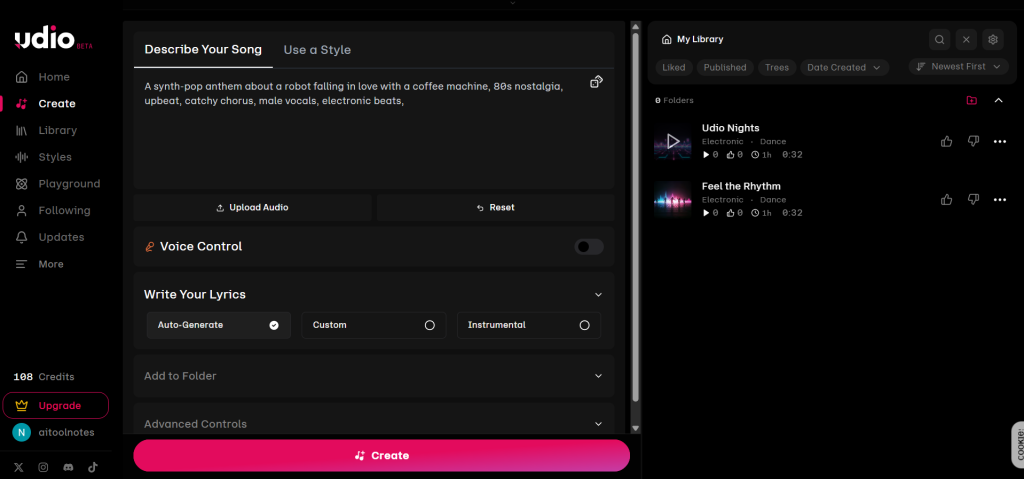
Step 1: Entering the Prompt
I typed the following command into the magic box:
“A synth-pop anthem about a robot falling in love with a coffee machine, 80s nostalgia, upbeat, catchy chorus, male vocals, electronic beats”
As you can see in the screenshot below, I set the lyrics to “Auto-Generate” to let the AI write the story for me.
Step 2: The Result (Listen to This)
I clicked the pink “Create” button. The generation took about 40 seconds to produce two distinct 32-second clips.
Here’s the best version it generated. Listen specifically to how the vocals handle the word “machine”—it’s surprisingly human.
The Quality Analysis (Did It Actually Sound Good?)
After listening to the generated track about the robot and the coffee machine, I have to admit—I was shocked. I expected a garbled mess, but what Udio spit out was a legitimate song structure.
Here’s my breakdown of the audio quality:
1. The Vocals (9/10)
This is usually where AI fails. Most tools sound like Siri trying to sing. However, Udio generated a male voice with actual texture. You could hear the “breath” between lines, and he hit the high notes in the chorus without sounding metallic. If you didn’t know it was AI, you might just think it was a heavily processed 80s pop track.
2. The Lyrics & Context (8/10)
Remember, I asked for a “love story.” The AI didn’t just paste random words; it actually wrote lines like “Sparks fly when I pour your brew” (or similar context). It understood the metaphor of the prompt. It didn’t just keyword-stuff; it wrote a cohesive, funny song.
3. The Structure (Musicality)
It understood the difference between a “verse” and a “chorus.” The song started with a quiet synth intro, built up energy, and then dropped into a catchy hook. It felt composed, not just randomized.
The One Downside (The “Fuzz”)
It wasn’t perfect. Towards the end of the 32-second clip, there was a slight “digital fuzz” or artifacting. It’s not studio-quality audio that you would put on Spotify immediately, but for a YouTube intro or a meme? It’s more than enough.
The Final Verdict
So, is Udio just a toy, or is it a tool?
Who Should Use This?
- YouTubers & Streamers: If you need custom intro music or “Stream Starting Soon” loops and are tired of copyright strikes, this is a lifesaver.
- Content Creators: Perfect for background tracks on TikToks or memes where the music needs to match the video’s specific vibe.
- Writers: Great for generating “theme songs” for your book characters to get inspiration.
Who Should Skip It?
- Professional Musicians: You cannot easily separate the tracks (stems). You can’t say “Keep the drums but change the bass.” It generates a baked audio file, so you’re stuck with the mix it gives you.
My Final Rating:
- Quality: 9/10
- Ease of Use: 10/10
- Fun Factor: 11/10
The Bottom Line
Udio is currently the king of AI music. The “Free Plan” is generous enough to get you addicted, but the quality is high enough that you might actually consider paying.