Gourav
 If you’ve been looking into AI voice generators lately, you’ve probably heard of ElevenLabs. They’re basically the gold standard right now—their voices sound eerily human, complete with natural breath pauses, emotional shifts, and realistic intonation.
But here’s the thing most new creators actually want to know: it’s not really about the quality anymore. It’s about whether you can actually afford to use it.
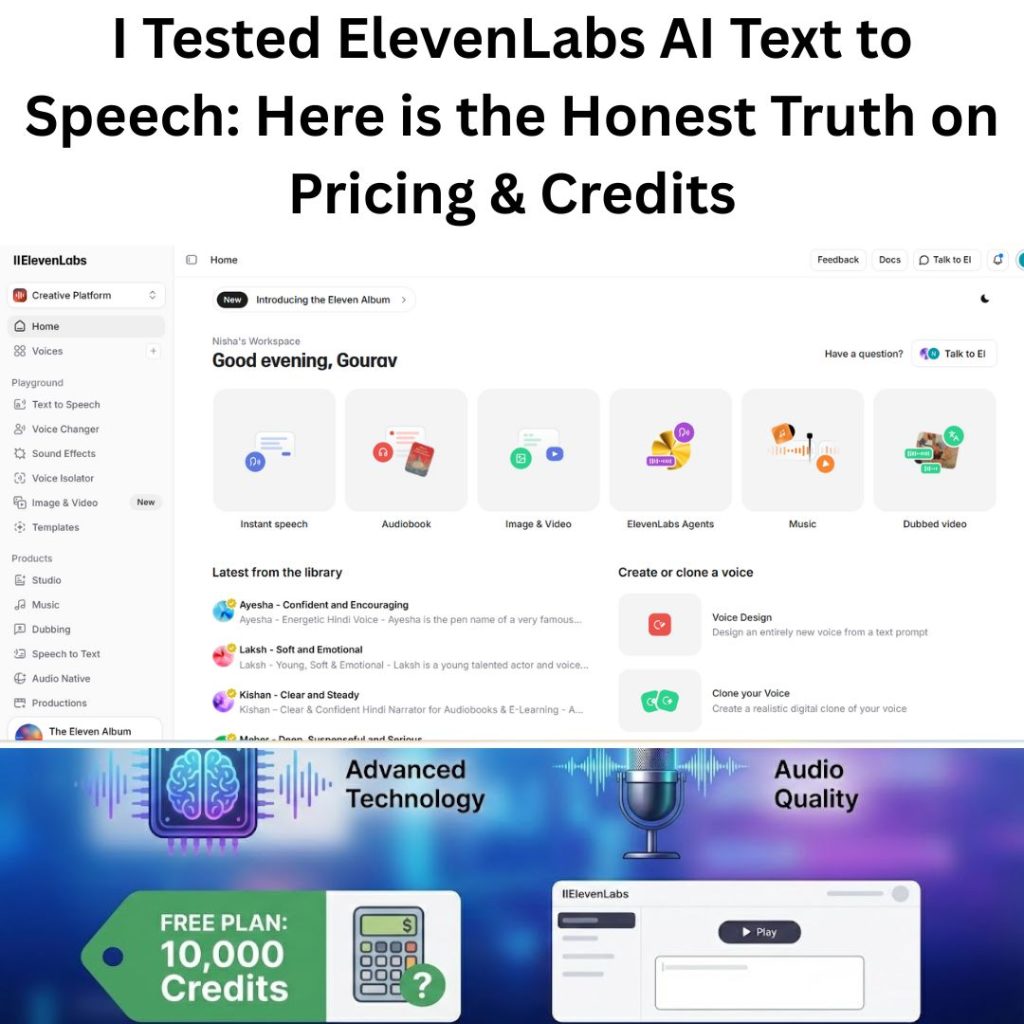
ElevenLabs promotes a “Free Forever” plan that gives you 10,000 credits per month. Sounds generous, right? But here’s what nobody tells you upfront—is that actually enough to run a faceless YouTube channel, or is it just a glorified trial designed to push you toward a paid plan?
So I Decided to Test It Myself
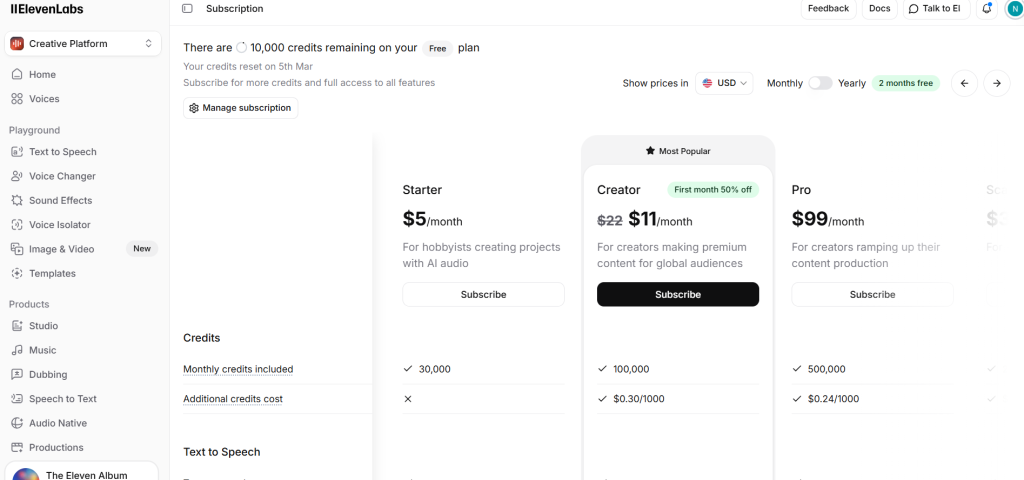
Instead of just reading their marketing materials and guessing, I created a free account and put the 10,000 credits through a real-world stress test. I wanted clear answers to the questions their pricing page conveniently doesn’t answer:
- The actual math: Does 10,000 credits really give you 10 minutes of voice-over, or do higher quality settings drain them way faster?
- The licensing catch: Can you legally use these AI voices on YouTube without risking copyright issues? (Spoiler: there’s a rule you need to know about.)
- The hidden trick: I found a simple setting that basically doubles your free credits—if you know where to look.
What You’ll Learn in This Review?
I’m going to walk you through exactly how far the free plan actually gets you, show you the real dashboard numbers, and help you figure out whether you can make it work for free—or if you’ll need to bite the bullet and upgrade to the $5 Starter plan.
Inside the Dashboard: A Complete Walkthrough
What You See When You First Log In?
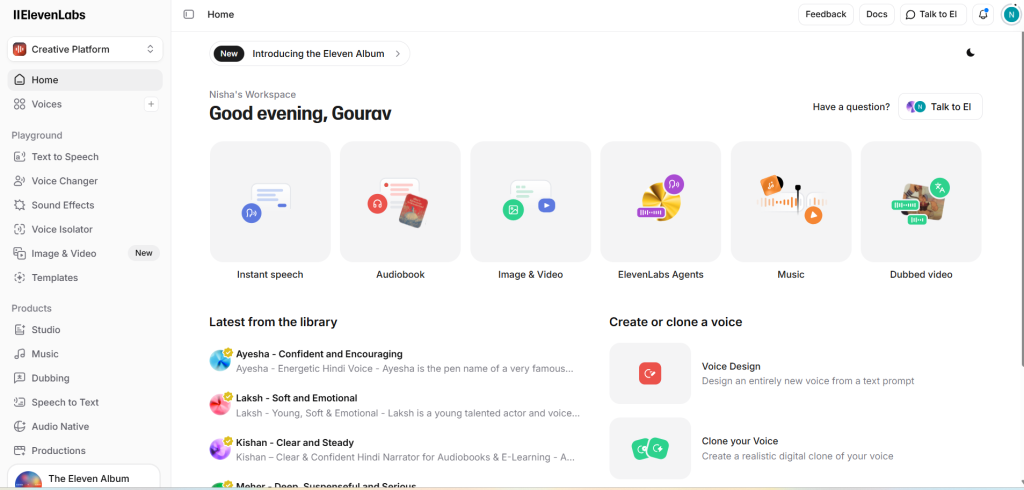
The moment you log into ElevenLabs, you can tell this isn’t your typical tech tool with a sterile interface. My dashboard greets me with “Good evening, Gourav,” which immediately makes it feel less like software and more like a creative workspace designed for actual people.
Let me walk you through what’s actually on the 2026 homepage:
1. Quick Action Grid (Center of the Screen)
Instead of hiding everything behind dropdown menus, ElevenLabs puts the six main tools right in front of you:
- Instant Speech: The bread-and-butter tool for quick voiceovers
- Audiobook: A dedicated workspace for long-form narration (great if you’re an author or audiobook creator)
- Image & Video: A newer addition for visual content generation
- ElevenLabs Agents: For developers building conversational AI bots
- Music: Generates background tracks
- Dubbed Video: Their standout feature that translates videos while preserving the original speaker’s voice
2. Sidebar: “Playground” vs. “Products”
The left sidebar organizes tools into two main sections:
- Playground: For quick testing and experimentation. This includes Text to Speech, Voice Changer, and Voice Isolator (which cleans up background noise from audio)
- Products: The professional-grade tools like Studio (for directing multi-voice scenes) and Dubbing
3. Personalized Voice Recommendations
Here’s something I noticed at the bottom of the dashboard—it actually suggests voices based on your location. Since I’m browsing from India, it automatically showed me relevant regional options:
- Ayesha: An energetic Hindi voice for confident narration
- Laksh: A young, soft, and emotional voice
- Kishan: A clear and steady Hindi narrator
This shows that ElevenLabs isn’t just focused on English content—they’re actively surfacing international voices for creators worldwide.
4. Voice Creation Tools (Bottom Right)
The most powerful features are tucked in the bottom corner:
- Voice Design: Create a completely original AI voice from scratch
- Clone Your Voice: Upload samples of your own voice to make a digital copy
The Text-to-Speech Editor: Where It All Happens
Step 2: Inside the Actual Workspace
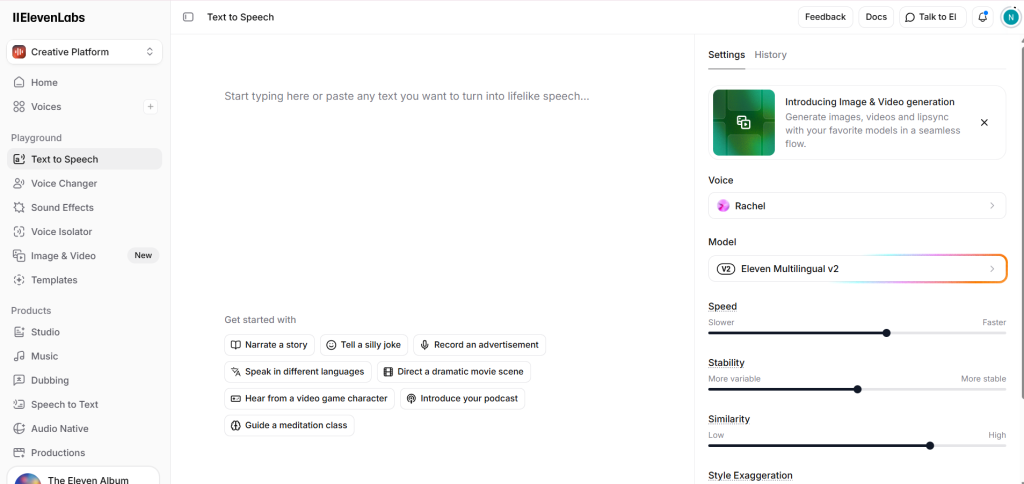
When you click “Text to Speech,” you land in the main editor. At first glance, it looks pretty simple—just a text box and a few controls. But don’t be fooled by the clean design. The real power is tucked away in the settings on the right sidebar.
Let me show you exactly what I configured for my test:
1. Choosing the Voice and Model
- Voice: The dashboard automatically selected “Rachel,” which is ElevenLabs’ most popular American female voice. You’ve probably heard her in TikTok voiceovers or Instagram Reels—she’s crisp, professional, and perfect for narration work.
- Model: It defaulted to “Eleven Multilingual v2.” This matters because unlike older models, this one can seamlessly switch between languages like English, Hindi, Spanish, or German mid-sentence without losing the character of the voice.
2. The Sliders That Actually Matter
On the right panel, you’ll find three sliders that most beginners completely overlook. But honestly? These are what separate a robotic-sounding voiceover from something that actually sounds human.
- Stability (I set mine to around 50%):
- Here’s the deal: slide this toward “More Stable” and the voice becomes consistent but flat—kind of like a GPS. Slide it toward “More Variable” and the AI adds natural emotion and breath, but it can start sounding unpredictable or even a little off. The sweet spot is right in the middle.
- Similarity: This controls how closely the AI matches the original voice actor’s tone. I keep this set high so it sounds exactly like Rachel.
- Speed: A straightforward control that lets you speed up the narration without making it sound like a chipmunk.
3. Quick-Start Prompts
If you don’t have a script ready, there are helpful buttons below the text box like “Narrate a story” or “Tell a silly joke.” Click one and the AI auto-fills the text box for you. It’s a great way to test how the voice handles different emotions without writing anything yourself.
Step 3: The Generation Test (Listen to This)
To prove the Free Plan is more than just a glorified demo, I decided to generate a professional intro for this exact blog post. I pasted a 453-character script into the editor and chose “Adam”—one of ElevenLabs’ most popular male narrator voices.
The Settings I Used:
- Voice: Adam (American, deep, narration-focused)
- Model: Eleven Multilingual v2 (for the most lifelike emotion)
- Stability: 50% (to keep it sounding natural)
Here’s the unedited result, generated in about 3 seconds:
What I Noticed When Listening Back:
Go ahead and hit play. Here’s what stood out to me:
- The breath pauses: Notice how Adam pauses slightly after asking the question (“…hearing right now?”). Older AI models would just barrel right into the next sentence without any natural rhythm.
- The tone: It doesn’t sound like a robot reading off a script—it genuinely sounds like someone talking into a podcast mic.
- The actual cost: This 453-character clip used exactly 453 credits.
- Quick math: With 10,000 free credits, I could generate this same intro about 22 times before running out.
The Real Cost Analysis
The Math: What Did That Clip Actually Cost Me?
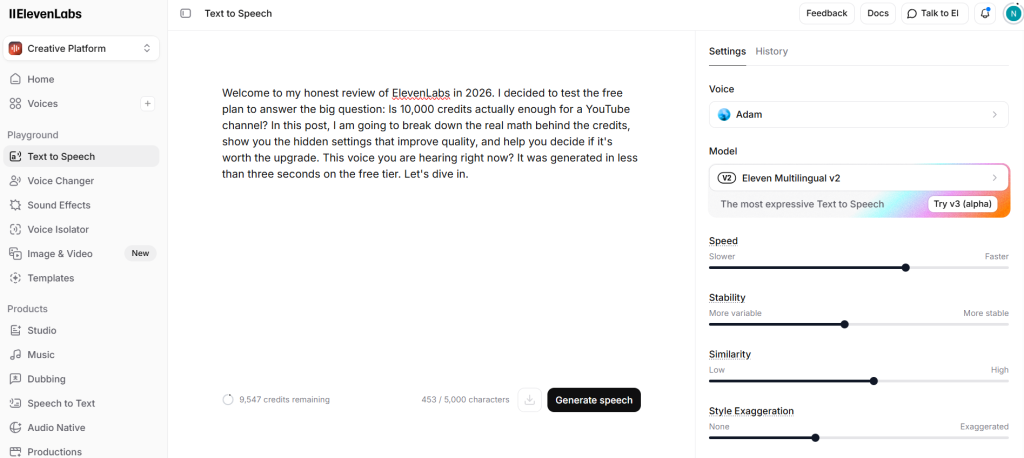
The audio quality is solid, but let’s talk about what really matters—how fast these credits actually burn through. I tracked my credit balance before and after hitting “Generate” to figure out the exact exchange rate.
Here’s What Happened:
- Starting Balance: 10,000 credits
- Script Length: 453 characters
- Ending Balance: 9,547 credits
The Calculation:
10,000 – 9,547 = 453 credits used
The Takeaway: On the standard “Multilingual v2” model, the formula is simple: 1 character = 1 credit.
What This Means for Your YouTube Channel?
The average person speaks around 150 words per minute. So here’s how it breaks down:
- 1 minute of voiceover: Roughly 1,000 characters = 1,000 credits
- The free plan limit: With 10,000 credits, you get about 10 minutes of finished audio per month
Important Warning: This 1:1 ratio only applies to the text you actually use. If you regenerate the same audio three times to nail the tone, you’re paying for it three times. So don’t waste credits experimenting without a plan.
The Voice Library: More Than Just “Adam”
Step 4: Finding Your Perfect Voice Match
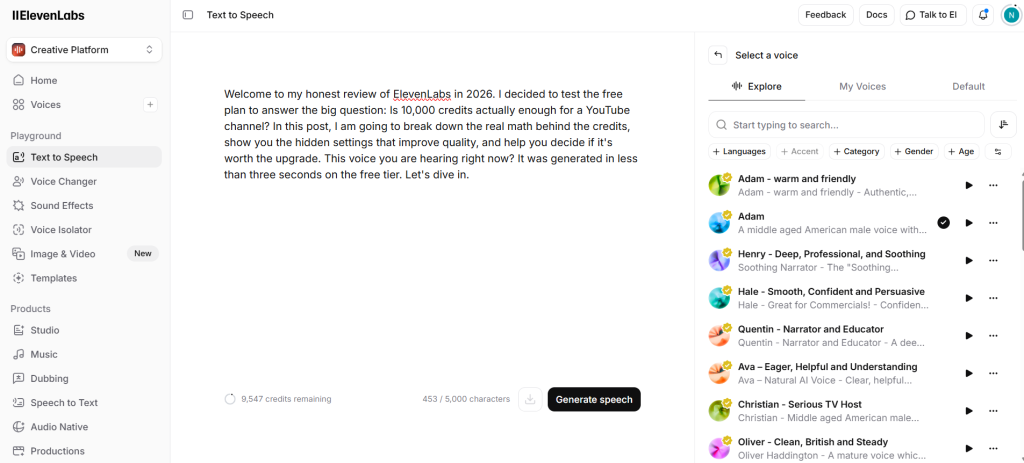
While Adam might be the most recognizable AI voice on the internet (seriously, you’ve definitely heard him on TikTok), I wanted to explore what else was available. The screenshot above shows how the library is organized by use case, which honestly makes browsing way easier than I expected.
Here Are Some Standout Voices I Found:
- For news and serious content: I tested “Christian” (tagged as a “Serious TV Host”) and “Henry” (deep and professional). Both have that polished broadcast quality that would work great for documentary-style YouTube channels.
- For commercials: There’s a voice called “Hale” that’s labeled as “Smooth, Confident, and Persuasive.” I ran a quick test with a fake ad script, and he legitimately sounded like a car commercial announcer.
- For storytelling: “Quentin” is tagged as a narrator with a deeper, grittier tone—perfect for horror stories or dramatic history lessons.
The Filter System Actually Works
At the top of the library, you’ll see filter options for Language, Accent, Category, and Gender. This is honestly a lifesaver. Instead of scrolling through thousands of voices, you can just click something like “British + Male + Narration” and immediately see only the voices that fit. It takes seconds.
The Final Verdict
Conclusion: Should You Stick to Free or Upgrade?
After pushing the free plan to its limits and crunching the actual credit costs, here’s my honest take for 2026.
Who Should Stay on the Free Plan?
- Hobbyists: If you’re making less than one video a month or just creating funny voice memes for friends
- Students: Perfect if you need a voiceover for a school project or presentation
- People still testing the waters: If you’re experimenting with different YouTube niches and not committed yet
Important reminder: On the free plan, you have to credit ElevenLabs in your video description, and you can’t monetize that content.
Who Should Upgrade to Starter ($5/month)?
- New YouTubers ready to monetize: The $5 is honestly worth it just for the commercial license alone. It protects your channel from potential copyright headaches down the road.
- Voice cloners: This plan unlocks instant voice cloning, meaning you can clone your own voice and never have to record audio manually again.
Who Needs Creator ($22/month)?
- Consistent uploaders: If you’re posting 2-3 times a week, the 30,000 credits in the Starter plan will run out fast. The Creator plan gives you 100,000 credits (roughly 2 hours of audio), which is the sweet spot for active channels.
My Final Rating
- Quality: 10/10 – The voice realism is unmatched
- Ease of Use: 9/10 – The dashboard is clean and intuitive
- Price: 8/10 – Not cheap, but you genuinely get what you pay for